Use the Inbox
How to use the Slovio Inbox to find, filter, reply to, assign, snooze and resolve customer conversations from every channel with your whole team.
4 min readUpdated
The Inbox is one shared list of every conversation from every connected channel. Open Inbox in the left sidebar, pick a conversation, reply in the composer, and select Resolve when you are done.
Find a conversation
The tabs across the top of the list are All, Open and Resolved. The More tab holds:
| Tab | What it shows |
|---|---|
| Pending | Conversations a bot handed to a person, and conversations waiting on the customer after your reply. |
| Snoozed | Conversations you snoozed until later. |
| Expired | Conversations whose reply window has closed. |
| Broadcast | Conversations started by a broadcast. |
| Favourite | Conversations you marked as favourite. |
| Blocked | Contacts you blocked. |
To search, type a name or phone number in Search conversations....
To narrow the list, select Filter. You can filter by Search (Name/Phone), Conversation Status, Assigned Agent, Favourite/Blocked, Channel, Date Range, Read Status, Opted In, Contact Status, Source, Priority, Stage, Tags and Attributes.
Reply to a customer
The composer has two tabs:
- Reply sends to the customer. You can add an attachment, image or video. On WhatsApp and RCS you can also share a location or record a voice note. Template and Quick Reply insert saved content.
- Note is internal. Write the note and select Add Note. Only your team sees it.
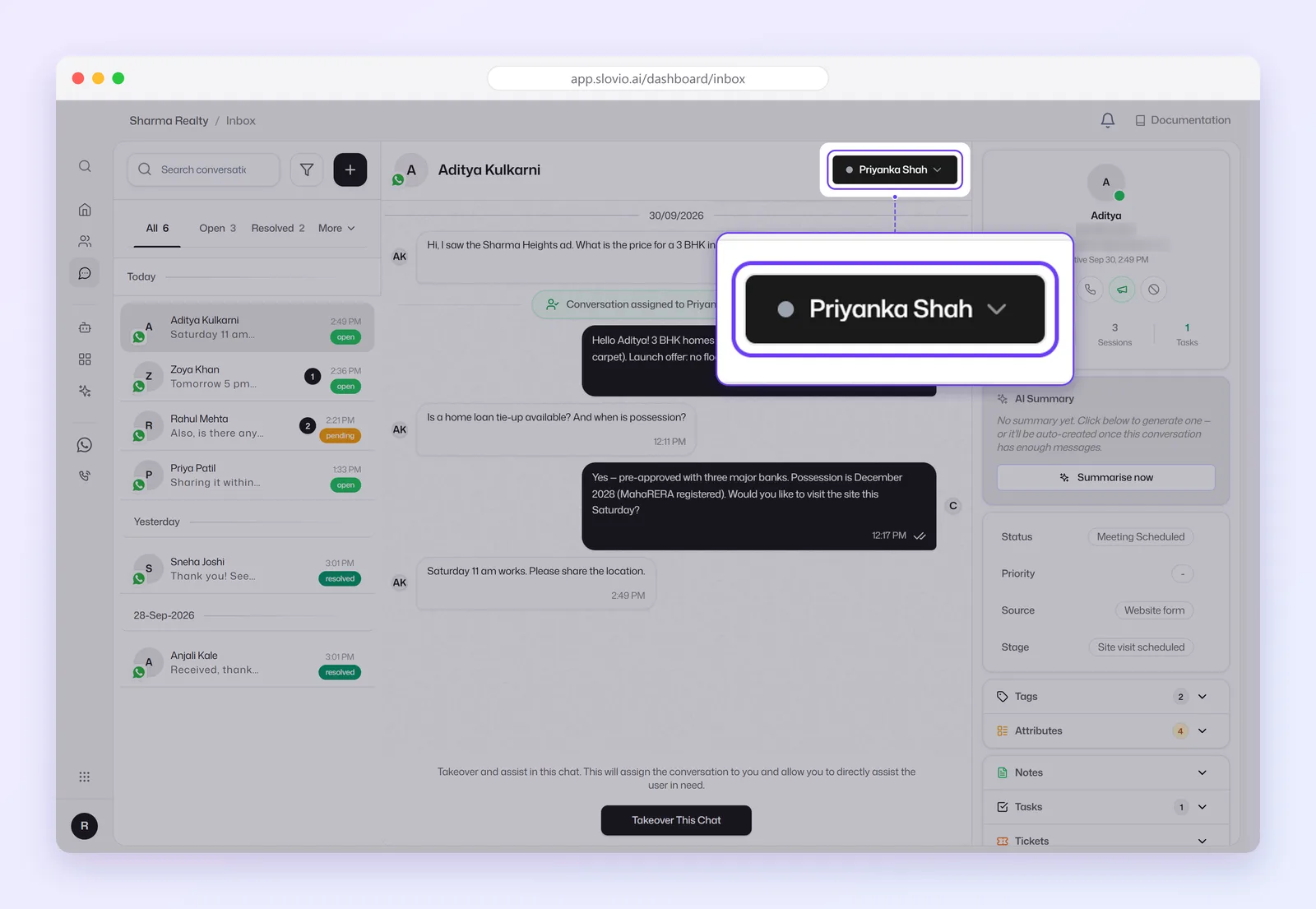
If the conversation is assigned to someone else, you see Takeover This Chat instead of the composer. Select it to take the conversation over.
Restart an expired WhatsApp chat
WhatsApp allows free-form replies only for 24 hours after the customer's last message. After that the chat shows Chat window expired with a Send Template button. Send an approved template to restart the conversation. See The 24-hour customer service window.
Assign a conversation
Use Select Agent in the conversation header to assign it. When someone is assigned, the button shows their name. Conversations that a chatbot hands to a person arrive in Pending.
Automatic assignment is set up in Assignment, SLAs and macros.
Snooze a conversation
Only the assigned agent sees Snooze. Choose:
- In 1 hour
- In 3 hours
- Later today (6 pm, shown only before 6 pm)
- Tomorrow morning (9 am)
- Next week (9 am, 7 days from now)
- a custom date and time, then Snooze until then
You can snooze for up to 30 days. The conversation comes back when the time arrives or when the customer writes. To bring it back early, select Wake now.
Resolve a conversation
Select Resolve when the conversation is done. The button then reads Resolved. Only the assigned agent sees it. If CSAT is switched on, the customer gets a satisfaction survey. See Tickets and CSAT.
Use the contact panel
The panel beside the conversation shows the customer's details and these sections:
- AI Summary of the conversation so far
- Tags and Attributes
- Notes, which can be pinned or private
- Tasks
- Tickets, with Create Ticket
Get new-message alerts
Select the bell at the top of the app, then Enable desktop notifications so you don't miss updates. The option shows only if your browser has not asked you yet. To change the sound, open the account menu → Profile & account → Tone.
Worked example: a delivery question on WhatsApp
Priya works support at Sharma Electronics, Pune. A customer, +919876543210, writes "Where is my order #4512?" at 7 pm.
- Priya opens Inbox → Open and selects the conversation.
- She selects Select Agent and assigns it to herself.
- In Note she writes "Checking with courier, AWB 7781" and selects Add Note.
- She replies "Your order is with the courier. We will update you by tomorrow 10 am."
- She selects Snooze → Tomorrow morning.
At 9 am the conversation returns to her list. She sends the tracking link and selects Resolve. The customer gets the CSAT survey.
Common questions
Why can't I see Snooze or Resolve on a conversation?
Both buttons show only to the agent assigned to the conversation. Assign it to yourself with Select Agent, or select Takeover This Chat.
Can customers see my notes?
No. Anything written in the Note tab is visible only to your team.
Why does a WhatsApp chat say Chat window expired?
The customer has not written in the last 24 hours. Select Send Template to send an approved template, which reopens the conversation.
What is in the Pending tab?
Conversations a bot handed over to a person, plus conversations marked as waiting on the customer after an agent's reply.
How long can I snooze a conversation?
Up to 30 days. It also wakes as soon as the customer sends a message.
Stuck, or is something here out of date? Tell the team — we reply within a working day.