WhatsApp broadcast worked example
A complete WhatsApp broadcast worked example, from a filled-in Utility template to an Excel audience, variable mapping and the message each customer receives.
8 min readUpdated
This page walks through one real WhatsApp broadcast from start to finish: an "order shipped" Utility template, an Excel sheet of customers, how each {{1}}, {{2}} and {{3}} gets its value, and the exact message a customer receives. Follow it step by step for your first broadcast, then swap in your own business details.
The example business is Kaveri Organics, a Pune D2C brand that ships orders across India and wants to tell each customer their order number and courier tracking number.
What you need before you start
- A connected WhatsApp number. See Connect WhatsApp.
- A plan that includes broadcasts, and enough balance in your wallet. See Wallet and recharge.
- About 24 hours for Meta to review the template.
Step 1: Create the template
- Open WhatsApp in the sidebar → Templates tab → Create template → Normal.
- Fill in the form with the values below.
- Select Create Template. The template shows Pending until Meta approves it.
| Field | Value |
|---|---|
| Template Name | order_shipped (lowercase letters, numbers and underscores only; a space becomes _) |
| Template Type | Utility |
| Languages | English |
| Show header | On → Text → Header Text: Your order is on its way |
| Body | see below |
| Sample Content for Body | {{1}}: Asha, {{2}}: KO-10482, {{3}}: DL5543210987 |
| Footer (Optional) | Kaveri Organics Pvt Ltd, Pune |
| Template Buttons | two buttons, see below |
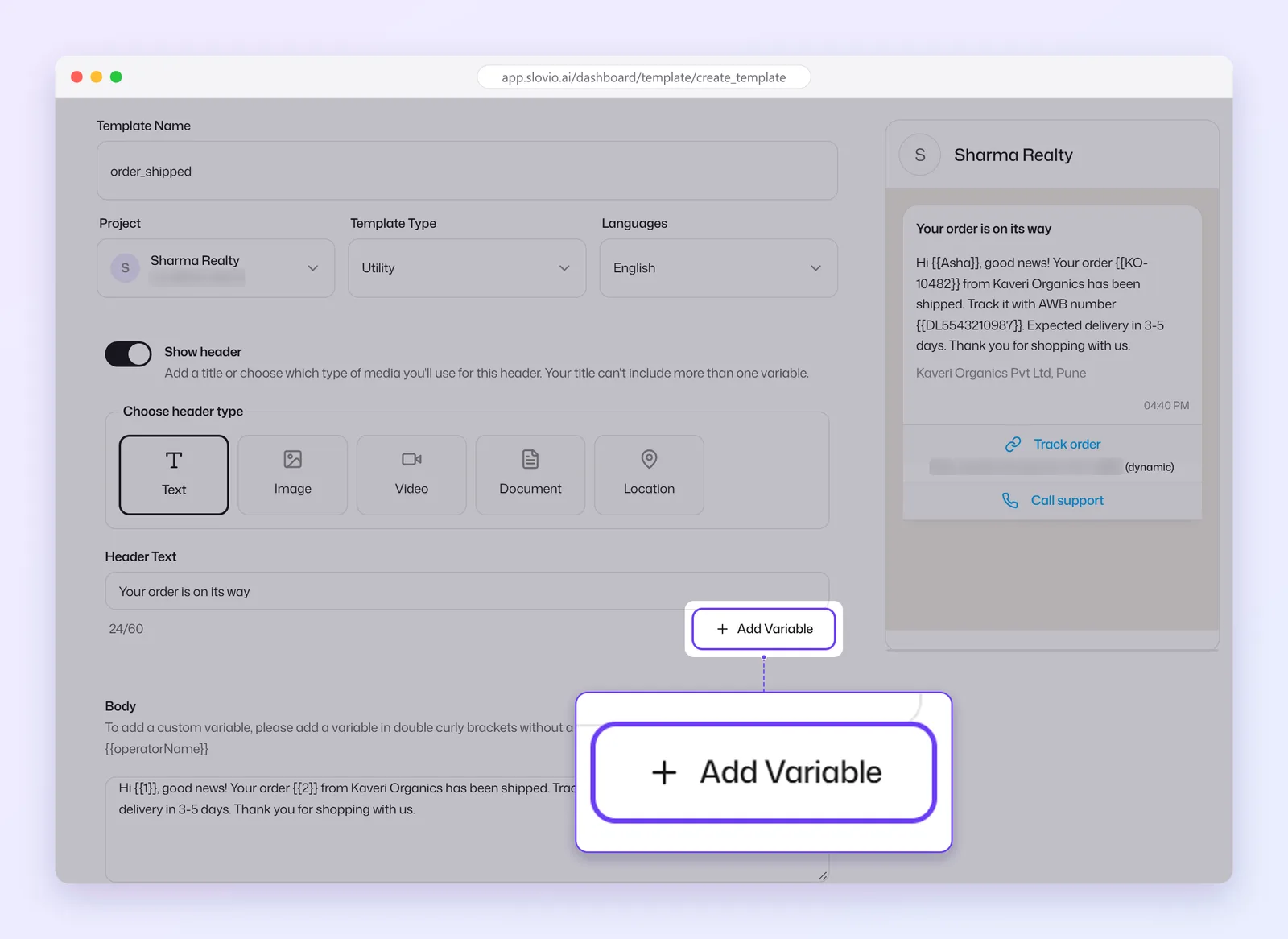
Body:
Hi {{1}}, good news! Your order {{2}} from Kaveri Organics has been shipped. Track it with AWB number {{3}}. Expected delivery in 3-5 days. Thank you for shopping with us.The body starts with "Hi" and ends with a sentence, not a variable. The form refuses a body that starts or ends with a variable, or puts two variables next to each other. You can also type named variables such as {{customer_name}}; they are renumbered to {{1}}, {{2}}, {{3}} in order when you create the template.
Buttons, added with Add Buttons:
| Order | Button | Settings |
|---|---|---|
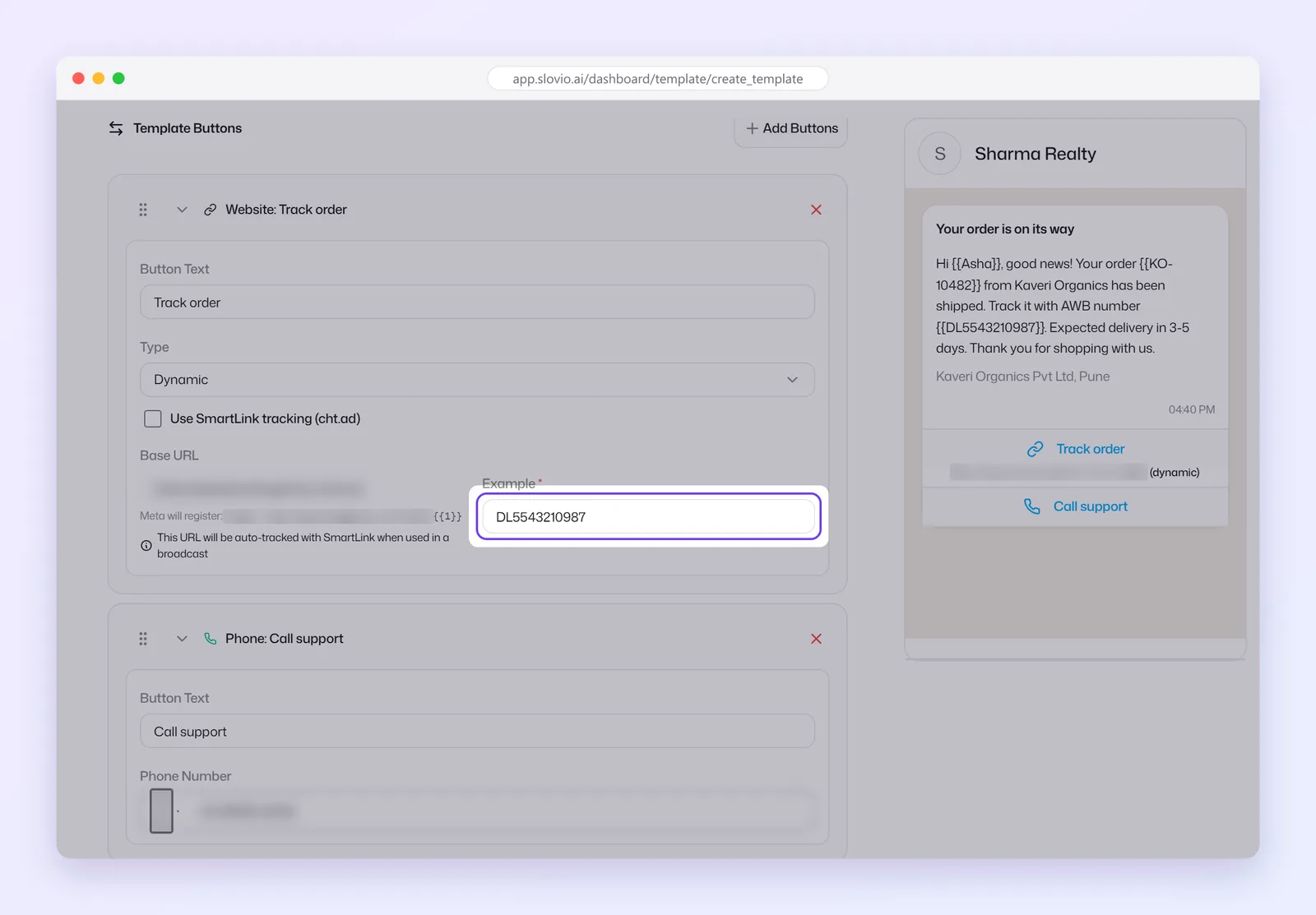
| 1 | Visit website | Button Text: Track order. Type: Dynamic. Untick Use SmartLink tracking (cht.ad). Base URL: https://www.kaveriorganics.in/track/. Example: DL5543210987 |
| 2 | Call phone number | Button Text: Call support. Phone Number: +91 98765 43210 |
Under the Base URL the form shows what Meta will register: https://www.kaveriorganics.in/track/{{1}}. The Example accepts letters, numbers, hyphens and underscores only.
Step 2: Prepare the Excel sheet
Make an .xlsx or .xls file. The first row is the header row. One column must hold the phone number.
| contact_number | name | order_id | tracking |
|---|---|---|---|
| +919876543210 | Asha | KO-10482 | DL5543210987 |
| 9812345678 | Ravi | KO-10483 | DL5543210988 |
| +918765432109 | Meera | KO-10484 | DL5543210989 |
What Slovio does with each column:
- contact_number is the phone number.
Phone,Mobile,Mobile NumberandPhone Numberare also recognised. - name becomes the contact's First Name.
First NameandfirstNamework too. - order_id and tracking are not standard contact fields, so each one is saved as a custom field on the contact, named exactly like the header.
9812345678has no country code, so it uses the Default country for bare numbers you pick during upload (India by default).
Step 3: Upload the audience
- Open WhatsApp → Broadcast tab → New Broadcast.
- Under the audience tabs, choose Upload, then drop the file or select Browse File.
- The Review upload card shows how many contacts are in the file and how many columns it has.
- Leave Default country for bare numbers on +91 (India).
- Select Use this audience.
The rows import in the background. The message "Contacts queued for import" confirms it started. Build the rest of the broadcast while it runs. You can send or schedule once the import finishes. Until then, sending returns "Contact upload is still in progress. Please wait for it to complete before creating a broadcast."
Uploaded rows are saved to your contacts. A row whose number already exists updates that contact with the sheet's values.
Step 4: Pick the template and fill the variables
- Enter a Name for the broadcast, for example
Order shipped - 30 Sep. Each name must be unique; a used one shows "This name is already used." - In Template, choose
order_shipped. Only approved templates are listed. - Under Fill the 3 variables, set each one as shown below.
Each variable field takes either fixed text you type (the same for everyone) or a field you pick from the … menu beside it. The … menu lists:
- your CRM custom properties, including columns saved from earlier uploads,
- the built-in fields First Name, Last Name, Mobile and Email.
| Variable | What you do | The field then shows |
|---|---|---|
{{1}} |
… → First Name | {{firstName}} |
{{2}} |
… → order_id | {{order_id}} |
{{3}} |
… → tracking | {{tracking}} |
| Button URL | … → tracking | https://www.kaveriorganics.in/track/{{tracking}} |
The button URL field cannot be typed in. You can only pick a field for it from its … menu.
Set a fallback for First Name
After you pick a field, a small badge with the field's name (for example firstName) appears in the variable box. A yellow badge means no fallback is set. Select it, type a Fallback such as Customer, and press Enter. The badge turns green.
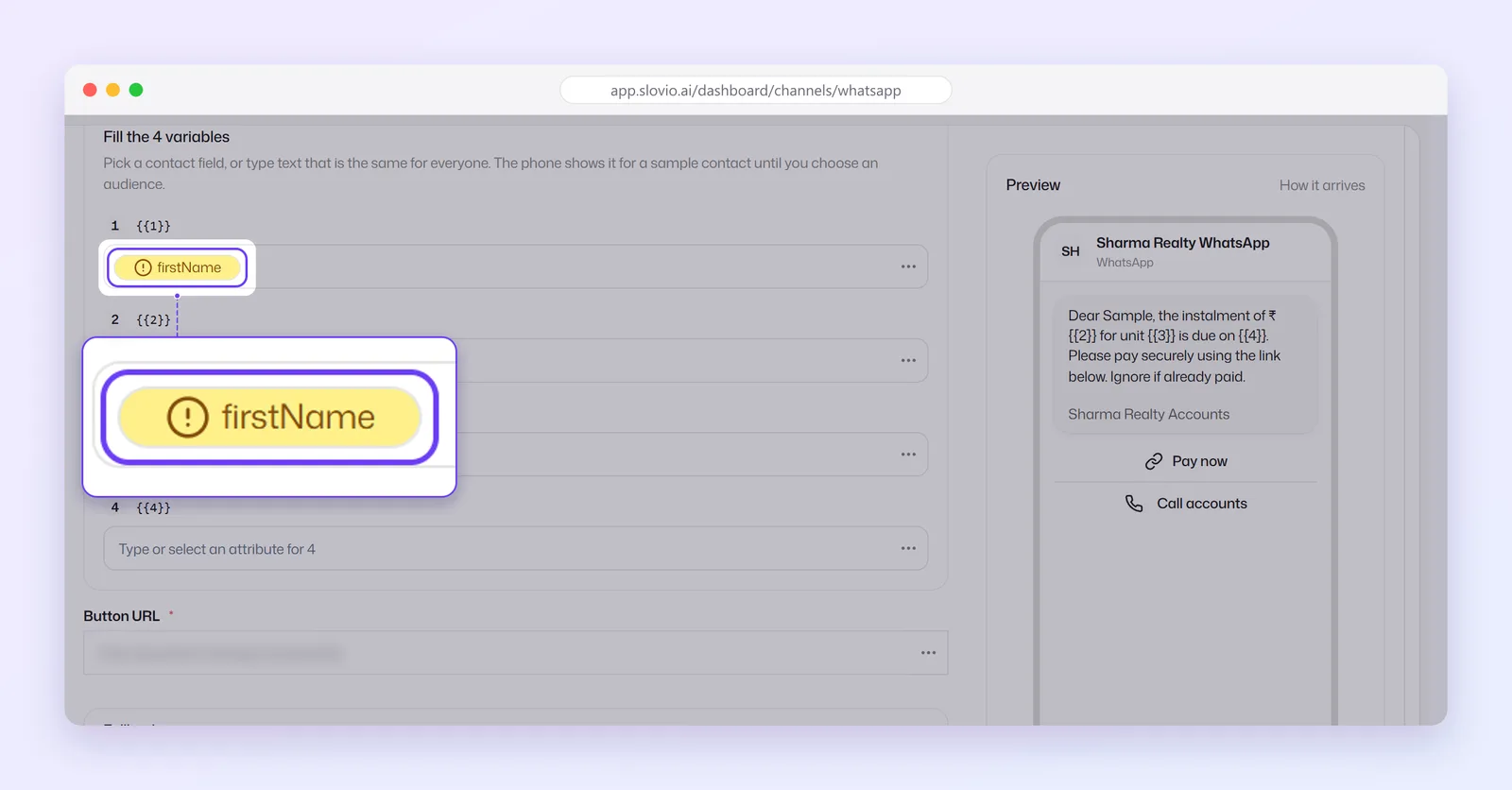
The fallback is used when a contact has no value for that field. Without one, that spot in the message is sent blank.
How a variable gets its value at send time
For each contact, Slovio looks up the field name in this order:
- the contact field or custom field with exactly that name,
- the same name ignoring upper and lower case,
- the same name ignoring spaces,
- your fallback value,
- nothing: the spot is left blank.
The dynamic button is stricter. It uses only an exact name match and no fallback. If a contact has no value for it, the button's value is left out and WhatsApp is likely to reject that message. Make sure every row has a value in the column you pick for a button.
Step 5: Check, test and send
- Keep Opt-in only ticked unless you have a reason not to. It sends only to contacts with opt-in on. New contacts from a sheet start with opt-in on; existing contacts keep their own setting.
- Under Test on one number, enter your own mobile number and select Send test. It delivers the template once and does not start the broadcast.
- Under When to send, choose Send now, or Later and pick a date and time.
- Check the Preview panel on the right. It shows the category, language, recipient count and schedule, and fills the variables for a sample contact.
- Select Send broadcast (or Schedule broadcast).
What each customer receives
Asha's phone shows:
Your order is on its way

Hi Asha, good news! Your order KO-10482 from Kaveri Organics has been shipped. Track it with AWB number DL5543210987. Expected delivery in 3-5 days. Thank you for shopping with us.

Kaveri Organics Pvt Ltd, Pune

[ Track order ]   -> opens https://www.kaveriorganics.in/track/DL5543210987
[ Call support ]  -> calls +919876543210
Ravi gets the same message with his own name, KO-10483 and DL5543210988.
Price and wallet
Below the audience, Slovio shows the price for the contacts you picked, in the form <amount> INR for <n> contacts. Failed messages are refunded. When the audience spans several countries, a per-country breakdown appears. For an uploaded file the line may read "Pick an audience to see the price." because the rows are counted on the server.
When the broadcast starts, the cost is held from your wallet, and anything not sent is released. A scheduled broadcast fails with "Insufficient balance at scheduled send time" if the wallet cannot cover it then. See How usage is charged.
Pitfalls to avoid
| Problem | Why it happens | Fix |
|---|---|---|
| Everyone is greeted "Hi Contact" | The sheet had only a phone column, so every row got the first name "Contact". A fallback does not help, because "Contact" is a value. | Add a name column, or use fixed text such as there for {{1}}. |
| "Hi ," with a gap | The contact has no first name and no fallback was set. | Set a Fallback on {{firstName}}. |
| A new column is not in the … menu | The menu lists custom properties that existed when the page opened. | Create the property first (Step 2 tip), or for a body variable type the name in braces, for example {{order_id}}. |
| "Contact upload is still in progress…" | The background import has not finished. | Wait, then send or schedule again. |
| "Card 1 has some empty parameters." | A carousel card has a variable with no value. | Type a value for every variable on every card. |
| "Select media" | The template has an image, video or document header and no file is chosen. | Tick Use Custom Media Header and select the file. |
| Fewer recipients than rows | Opt-in only skips contacts with opt-in off, and rows with an invalid number are not imported. | Check opt-in on those contacts, and the numbers in the sheet. |
Common questions
Can I type the same text for every customer instead of picking a field?
Yes. Type the text straight into the variable box, for example Diwali for a sale name. Everyone receives exactly that text.
Do I need a column called contact_number?
You need one phone column. contact_number always works; Phone, Mobile, Mobile Number and Phone Number are recognised too.
What happens to a customer with no value for a variable?
Slovio uses the fallback you set. With no fallback, that spot is sent blank, and the rest of the message still goes out.
Can I reuse the same Excel columns in my next broadcast?
Yes. Each extra column is saved as a custom property the first time you upload it, so it is in the … menu next time.
Why does my Utility template show as Marketing?
Meta can change the category when the wording reads as promotional. Keep a Utility template about the customer's own order or account, with no offers.
Stuck, or is something here out of date? Tell the team — we reply within a working day.