Connect WhatsApp
Connect a WhatsApp Business number to Slovio through Meta's signup window: what you need beforehand, the steps, moving from another provider, and fixing errors.
2 min readUpdated
To connect WhatsApp, go to More → Workspace → Channels, select Connect on WhatsApp, name the channel, then select Connect your number and finish Meta's signup window. Slovio uses the official WhatsApp Business API, and it takes about five minutes.
Before you start
- A Facebook login with admin access to your business on Meta (Meta Business Manager). If you don't have one, Meta's signup creates it.
- A phone number for WhatsApp that can receive an SMS or a call for verification.
- Your business details: legal name, website and, for Indian businesses, GSTIN.
- Pop-ups allowed for app.slovio.ai, and ad blockers paused for this page (they can stop the Facebook window from loading).
Connect
Go to More → Workspace → Channels and select Connect on WhatsApp.
Give the channel a Channel Name (for example "Sales WhatsApp") and select Add Channel.
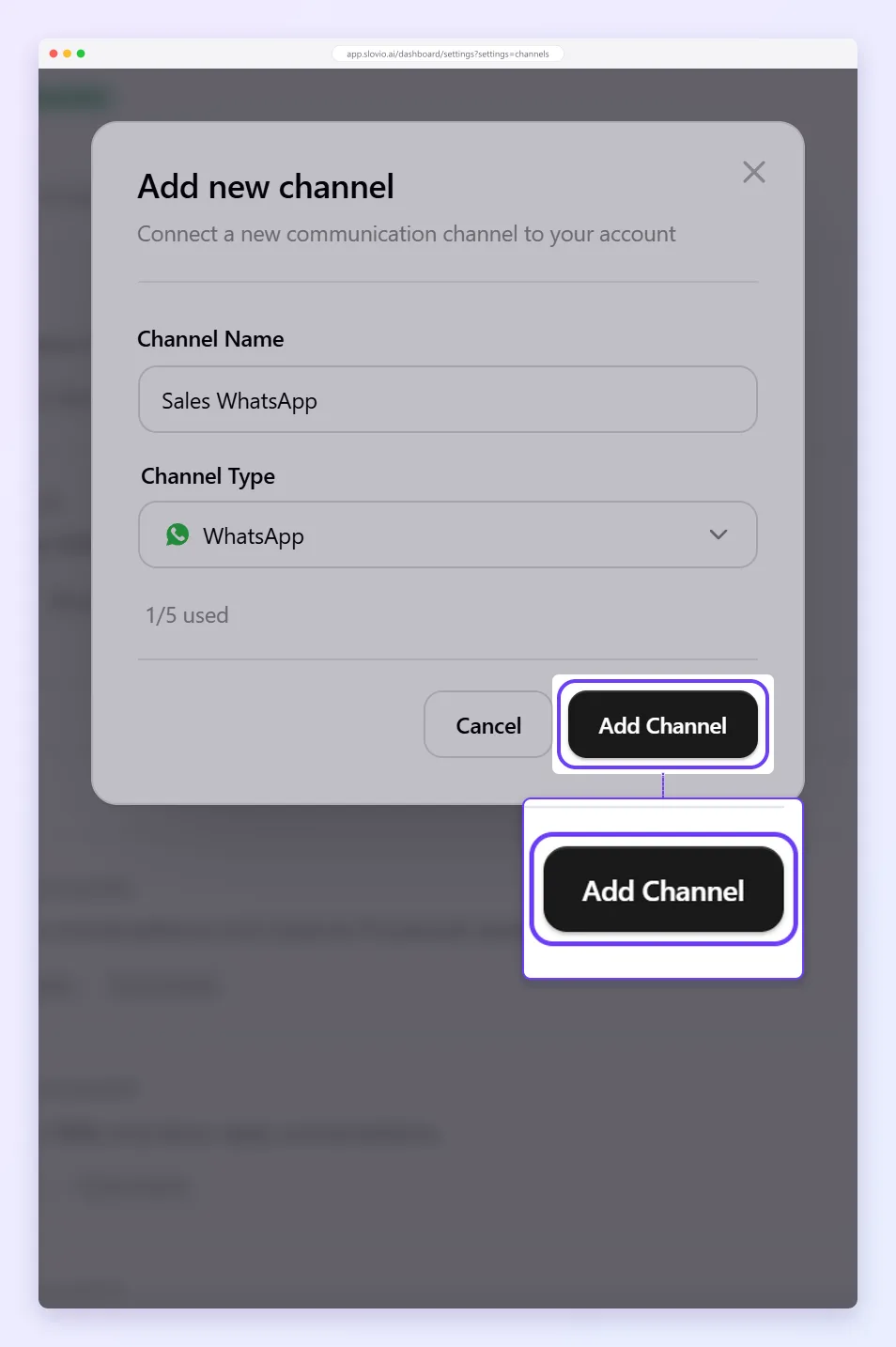
The channel now shows under Finish setup to go live. Select Connect your number.
Meta's window opens. Log in with Facebook, choose or create your business, add your WhatsApp business profile and verify your phone number.
When Meta finishes, Slovio saves the connection. The WhatsApp channel appears under CHANNELS in the sidebar with Connected.
Already on another WhatsApp provider?
You can move an existing WhatsApp Business API number to Slovio without losing it. Contact support: we send you a migration link. You need your current provider to switch off two-step verification on the number, or the current 6-digit PIN. The move usually takes under a minute once started.
Signup errors
| Message | What to do |
|---|---|
| Signup cancelled | You closed Meta's window. Select Connect your number to try again. |
| Facebook SDK did not load | Your network or an ad blocker blocked Facebook. Allow it for this page and retry. |
| WhatsApp setup did not complete | Meta did not finish. Retry, and complete every step in Meta's window. |
| Could not connect your number | Try again. If it repeats, contact support with the time you tried. |
| This number is already connected to another account | The number is on another WhatsApp Business account. Remove it there first, or use the migration link. |
Next
- Set up your WhatsApp business profile.
- Create your first WhatsApp template.
- Understand the 24-hour customer service window.
Common questions
How long does it take to connect WhatsApp?
About five minutes once you have your Facebook login, phone number and business details ready. Meta's own window does most of the work.
Can I use a number that is already on the WhatsApp Business app?
The number must be free to register on the WhatsApp Business API. If it is on another WhatsApp Business account, remove it there first or ask support for a migration link.
Can I connect more than one WhatsApp number?
Yes. Add another WhatsApp channel from More → Workspace → Channels and connect its number the same way.
Why did the Facebook window not open?
Pop-ups or an ad blocker stopped it. Allow pop-ups for app.slovio.ai, pause the ad blocker and select Connect your number again.
Stuck, or is something here out of date? Tell the team — we reply within a working day.