Chatbot blocks
Every block in the Slovio chatbot builder, grouped as in the palette: messages, questions, logic, data, AI, handover and flow, with the limits that apply.
4 min readUpdated
The Slovio chatbot builder has 21 blocks. You drag them from the palette on the right and connect them on the canvas; each block does one job, such as sending a message, asking a question or handing the chat to your team. This page lists them in the same sections as the palette.
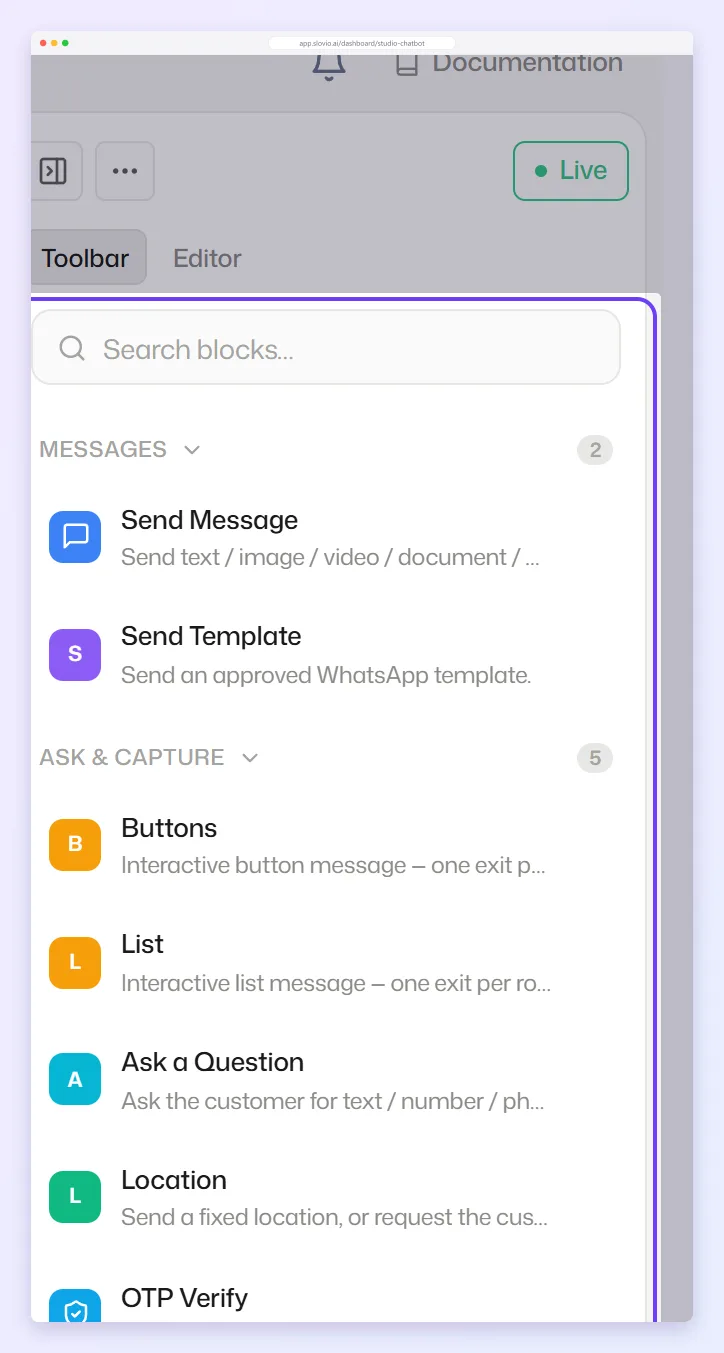
Messages
| Block | What it does |
|---|---|
| Send Message | Sends one or more parts, in order: Text, Image, Video, Audio or Document. |
| Send Template | Sends an approved WhatsApp template. You need one outside WhatsApp's 24-hour window. See WhatsApp templates. |
Ask & Capture
These blocks wait for the customer's reply.
| Block | What it does |
|---|---|
| Buttons | A message with up to 3 reply buttons. Each button gets its own exit. |
| List | A menu that opens from a button, with up to 10 rows in total across its sections. Each row gets its own exit. |
| Ask a Question | Asks for a Text, Number, Phone, Email, Date or URL answer and saves it to a variable. Answer validation can check the length or a pattern and ask again. |
| Location | Send a location (a map pin with a place name and address), or Request customer location and save what they share. |
| OTP Verify | Asks for a one-time code and checks it against the one OTP Fetch stored. Exits: Verified and Failed. |
Buttons and List have an optional AI mode (AI dynamic buttons / AI dynamic list) where AI writes the options.
Logic
| Block | What it does |
|---|---|
| Condition | Checks one or more rules on a variable, with 15 operators such as equals, contains, is greater than, is empty and matches regex. All rules match → If exit; otherwise → Else exit. |
| Delay | Waits before the next block. Minutes and seconds together can't exceed 10 minutes. |
| Working Hours | Two exits, Within hours and Outside hours, based on the channel's working hours. |
| Set Variable | Stores a fixed value in a variable for later blocks. |
Data
| Block | What it does |
|---|---|
| Update Contact | Saves answers to the contact's custom properties (Attribute updates), tags, email or phone number, and can set status, priority, source and stage. |
| Lookup Data | Calls your own HTTPS API (GET or POST), maps fields from the JSON response into variables, and exits on Success or Failure. With Expose as AI tool on, AI Conversation can call it too. |
| Google Sheets | Write a row of variables to a connected Google Sheet, or Look up a header. The contact number and time are added to each row automatically. |
| OTP Fetch | Gets a one-time code from your API and holds it in a variable for up to 600 seconds. |
| Replace Bot | Hands the conversation to another chatbot. Preserve session data carries the variables across. |
AI
| Block | What it does |
|---|---|
| Knowledge Base Answer | Answers from your knowledge base. Exits: Answer found and No answer. See Knowledge base. |
| AI Conversation | A multi-turn AI chat that follows your Instructions. Built-in exits: User is done, Wants a human and Can't answer, plus up to 10 Custom exits. See AI replies in chatbots. |
AI Conversation reads the last 15 messages by default. Change it under Advanced settings → History window (1 to 100); a bigger window costs more per reply.
Handover
| Block | What it does |
|---|---|
| Pause for Agent Note | Notifies a team member and waits. Exits: Agent replied and Timed out after Timeout (minutes). |
| Assign Agent | Hands the chat to the team members who carry a given agent tag. |
Flow
Chat Trigger is the start of every bot: it sets the keywords, channels and Instagram comment options. See Build a chatbot.
Variables in blocks
Answers, lookup results and AI replies are saved to variables, and contact fields such as {{contact.firstName}} are always available. Insert them in messages as {{variable_name}}. See Variables in chatbots and workflows for every source and what happens when one is empty.
Tips
- Always give customers a way to reach a person: a Buttons option that leads to Assign Agent.
- Put Working Hours before Assign Agent, so customers outside hours are told when you'll reply.
- Fields you rarely need sit under Advanced settings on each block.
For a full walk-through that uses many of these blocks, see WhatsApp lead capture chatbot example.
Common questions
How many buttons can I add to one message?
Up to 3 on a Buttons block, which is WhatsApp's limit. For more options, use a List, which takes up to 10 rows.
Can the bot wait for an hour before the next message?
No. A Delay block waits at most 10 minutes. For longer gaps, use a workflow with Wait / Delay.
How do I send a PDF from a chatbot?
Add a Document part to a Send Message block. Paste the file's link or select Browse to pick it from your media gallery, and set a File name.
What's the difference between Knowledge Base Answer and AI Conversation?
Knowledge Base Answer answers one question from your documents and moves on. AI Conversation keeps talking with the customer over several turns until one of its exits fires.
Can one bot have two Chat Triggers?
No. Each bot has exactly one Chat Trigger, and the builder won't add a second. To start the same flow on more keywords, add them to the existing trigger's Trigger keywords.
Stuck, or is something here out of date? Tell the team — we reply within a working day.