Reports and message log
Use Slovio reports and the message log to see channel analytics, every sent message with its cost, the monthly summary and WhatsApp history exports.
7 min readUpdated
Slovio's reports are under More → Insights. Analytics shows delivery and spend per channel for a date range. Message log lists every message you sent, with its status and cost. Monthly summary totals one calendar month. Export archive downloads your WhatsApp message history.
Where to find reports
Hover More in the left sidebar, then open Insights:
| Item | Use it to |
|---|---|
| Analytics | See sent, delivered, read and failed counts and spend per channel, for any date range. |
| CSAT | See how customers rated resolved chats. See Tickets and CSAT. |
| Message log | Find a single message, see why it failed, and export messages to a file. |
| Monthly summary | See one calendar month's delivery and what you spent, and download it as XLSX. |
| Export archive | Download a WhatsApp channel's message history for a day, week, month, year or custom range. |
| AI token usage | See AI spend across your bots. |
Analytics, Monthly summary and Message log cover WhatsApp, RCS and SMS. In Analytics and Monthly summary, a channel gets a tab once it is connected and set up. With none connected, you see No messaging channels connected.
Read channel analytics
- Go to More → Insights → Analytics.
- Pick a channel tab: WhatsApp, RCS or SMS.
- Pick a date range. The default is the current month.
- If you have more than one channel of that type, pick one from the channel list, or keep All WhatsApp channels (or All RCS channels, All SMS channels).
WhatsApp and RCS have four sub-tabs. SMS has only Overview.
| Sub-tab | What it shows |
|---|---|
| Overview | Tiles for Sent, Delivered, Read, Failed and Spend, a Daily trend chart, and a Breakdown by message category. |
| Sessions | Conversation sessions over time, their charges, and the Billable share of Paid and Unpaid sessions. |
| Country | Sent, delivered, read and failed messages and charges for each country. |
| Broadcast | Broadcast messages by date: sent, delivered, read and failed. |
SMS has no read receipts, so the SMS tab has no Read tile. If Spend says Estimated, the figure was rebuilt from message records, not from the exact billing entries.
If a tab says No WhatsApp traffic in this range, the channel is connected but sent nothing in those dates. Try a wider date range.
Find a message in the message log
Go to More → Insights → Message log.
Pick the WhatsApp, RCS or SMS tab.
Set the filters. The SMS tab has its own filters, see below.
Click Filter results.
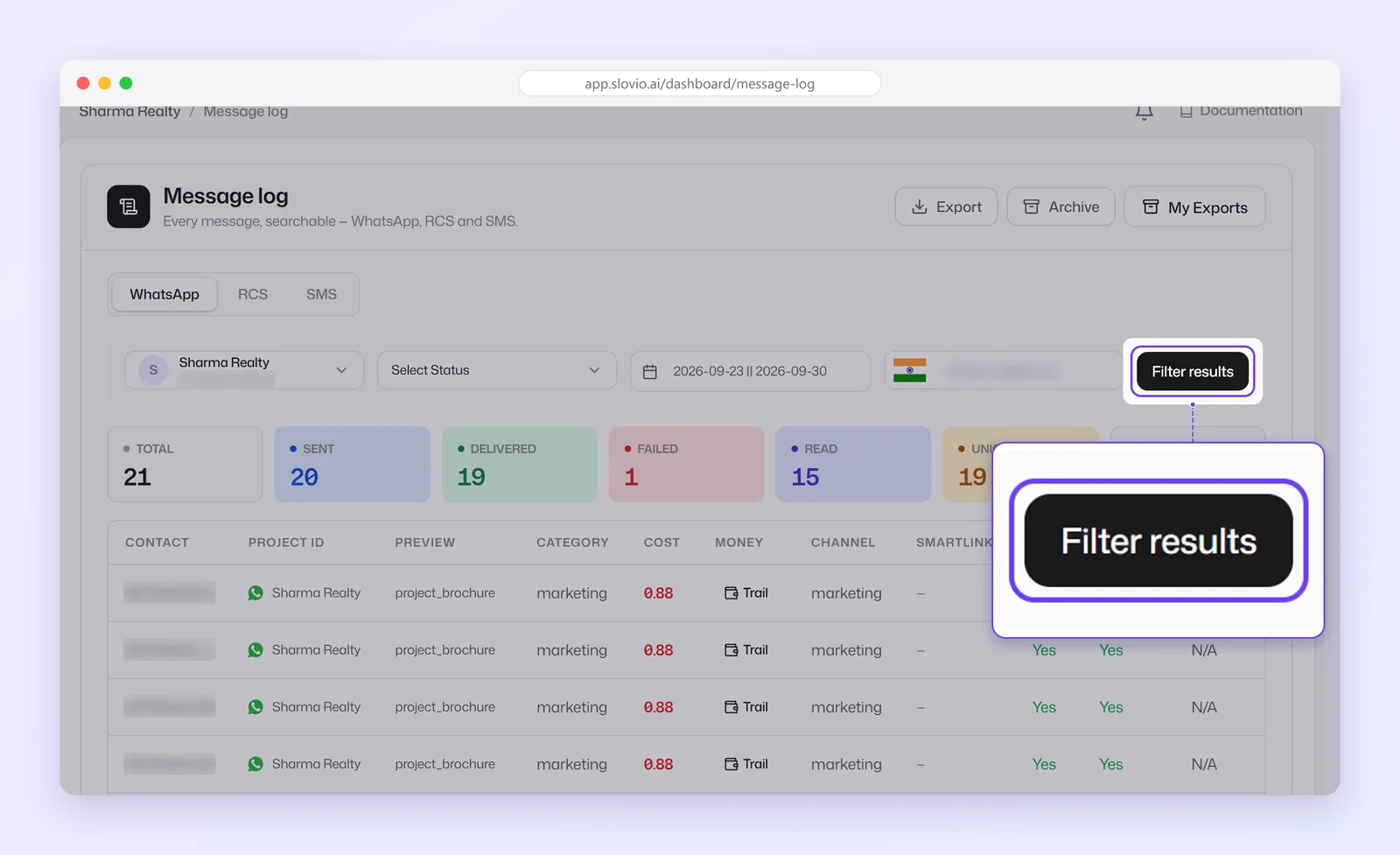
For WhatsApp and RCS, the filters are:
| Filter | Options |
|---|---|
| Channel | Which of your WhatsApp or RCS numbers to show. The log shows one channel at a time. |
| Select Status | Read, Sent, Delivered, Failed, or Not Paid (a billing filter, not a delivery status). |
| Date range | The default is the last 7 days. |
| Enter mobile no. | Pick the country code and type the customer's number. |
Above the table, tiles show the Total, Sent, Delivered, Failed, Read and Unique counts and the Cost for your filters. Each row shows the contact, the template name, category, cost, paid and billable flags, status, any error and when it was sent.
If your plan includes Reports & Analytics, each row also has a button that opens Money trail: the Usage events and Wallet transactions behind that message's charge.
When you open the log from a broadcast report, a Showing one campaign chip appears. Click its × to see all messages again.
The SMS tab
The SMS tab shows the SMS Delivery log, one row per recipient:
- Pick a window: Last 24 hours, Last 7 days (default), Last 30 days or Last 90 days.
- Filter by status: All, Delivered, Handed over, Failed, Rejected or Queued.
- Search by recipient number (at least 4 digits) or sender ID.
- Columns: To, Sender, Status, Sent, Charged, Refund and Reason.
- Click Refresh to load new rows.
Export messages to a file
On the WhatsApp tab of the message log:
- Set the channel, status, date range and number filters you want.
- Click Export. You see Export started, and the button shows Preparing… with a percentage.
- When the file is ready, it downloads by itself and you see Export ready.
Click Cancel next to the button to stop a running export. You can only have a few exports running at once. If you see "You already have exports running", wait for one to finish or cancel it.
Exports of up to 10,000 rows come as an XLSX spreadsheet. Bigger exports come as a CSV file, or as a ZIP file if the date range covers more than one month.
My Exports lists your last 20 exports with their status: Queued, Ready, Failed, Expired or Cancelled. Download a ready file again from there. Message log exports are kept for 7 days.
Check a month in the monthly summary
- Go to More → Insights → Monthly summary.
- Pick the channel tab: WhatsApp, RCS or SMS.
- Pick the Month and Year.
The tiles show Messages, Spent, Delivered with the delivery rate, Read with the read rate (not for SMS), and Balance for your wallet when available.
Below the tiles are these tabs:
| Tab | What it shows |
|---|---|
| Overview | Each metric with its count and rate. |
| Category | The month split by message category. |
| Country | The month split by country. Not shown for SMS. |
| Trend | The last 6 months, so you can compare. |
Click Export XLSX to download the month as a spreadsheet.
Download your WhatsApp history with Export archive
Use Export archive to download a long stretch of WhatsApp history in one go, for example a full year for your records. It doesn't delete any messages.
- Go to More → Insights → Export archive. You can also click Archive at the top of the message log.
- Under Channel & period, pick your WhatsApp Channel.
- Pick a period: Day, Week, Month, Year or Custom. The range can be up to 400 days.
- Check the Archive summary. It shows the Period, the Total records and a Status such as Available or No records.
- Click Generate export.
You see Archive export created, and My Exports opens so you can follow the progress and download the file. Archive files are named archive-export_… and use the same XLSX, CSV or ZIP formats as message log exports. Unlike message log exports, they don't expire after 7 days.
Export archive covers WhatsApp only. For SMS, use the SMS tab of the message log.
Example: find out why a customer didn't get an order update
Anjali runs support at Gupta Traders, Jaipur. A customer on +919876543210 says they never got yesterday's order confirmation on WhatsApp.
- She opens More → Insights → Message log → WhatsApp.
- She picks the channel "Gupta Traders Orders" and sets the date range to yesterday.
- She picks India as the country code, types 9876543210 in Enter mobile no. and clicks Filter results.
- The table shows one row with the template name
order_confirmation, status Failed, and a reason in the Error column.
The error tells her why the message failed, so she can fix the cause and send the update again.
Common questions
Why don't I see an RCS or SMS tab in Analytics?
A channel gets a tab only after it is connected and set up. Connect it under More → Workspace → Channels, then come back to Analytics.
Why is the Read count missing for SMS?
SMS has no read receipts, so Slovio hides the Read figure for SMS. Showing 0 would wrongly suggest nobody opened your messages.
Where did my export go?
Exports download by themselves when ready. If you closed the page, open My Exports from the message log or Export archive and download it there. Message log exports are removed after 7 days.
Can I export RCS messages?
Not yet. Export is greyed out on the RCS tab of the message log, and Export archive covers WhatsApp only.
Why does Monthly summary show an error?
Check that your plan includes Reports & Analytics. Without it, the monthly summary can't load. See Plans and subscription.
Stuck, or is something here out of date? Tell the team — we reply within a working day.