AI agents for workflows
How to create an AI agent with instructions and CRM tools in the Slovio AI Agents hub, test it with Execute, and run it as a step in a workflow.
4 min readUpdated
An AI agent in the AI Agents hub does work in the background as a step in a workflow, such as qualifying a lead, updating the CRM or drafting a follow-up. Create one under AI Agents → Create Agent, test it with Execute, then add the AI Agent action to a workflow. To chat with customers on a channel, use a chatbot with the AI Conversation block instead.
Create an agent
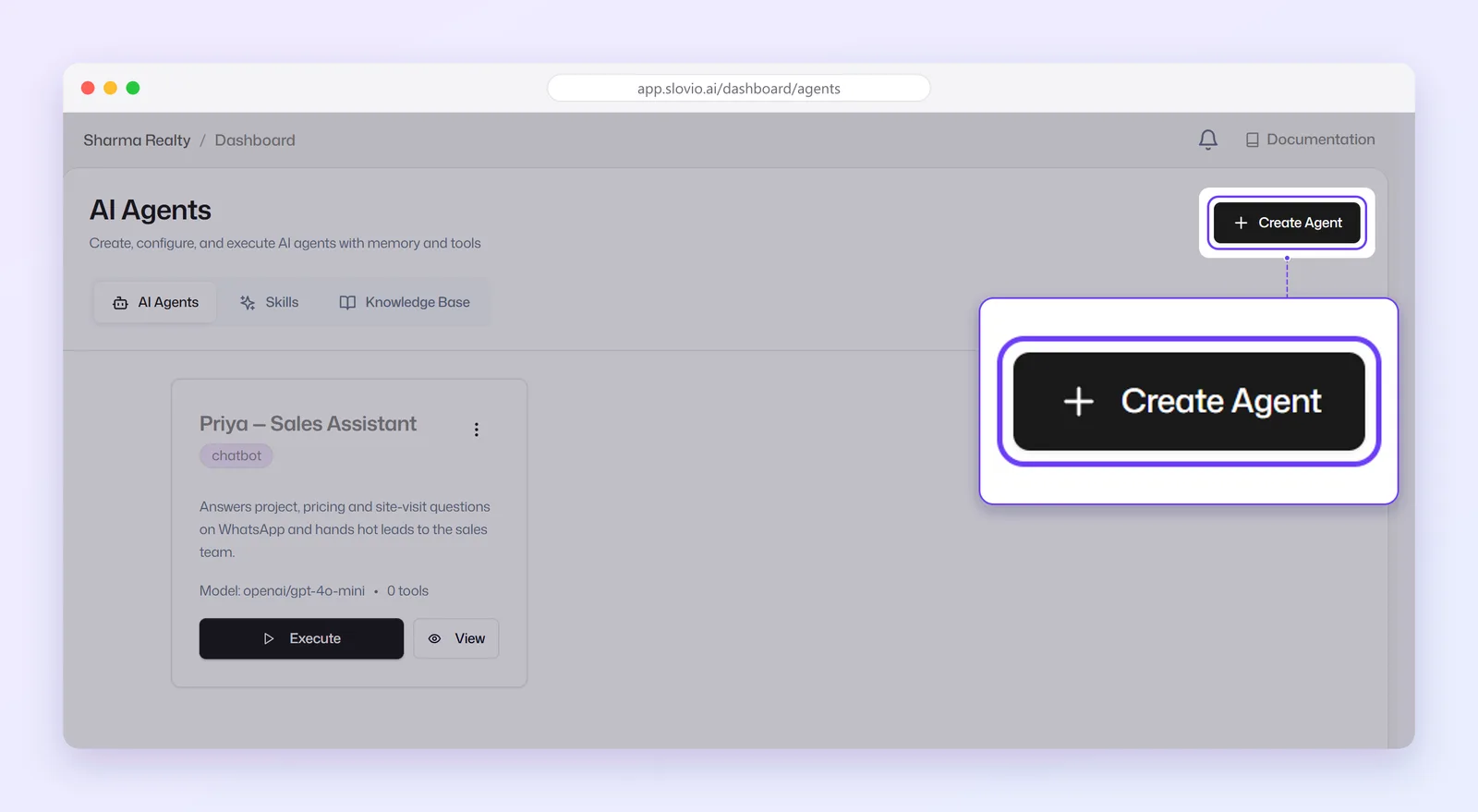
In the sidebar, select AI Agents. The hub has the tabs AI Agents, Skills and Knowledge Base.
Select Create Agent. The Create New Agent dialog has three steps.
Basic Info: Agent Name, Agent Type, Description and AI Model.
Instructions:
- System Instructions: what the agent does and how, up to 10,000 characters.
- Temperature: 0 = focused, 1 = creative. Default 0.7. Keep it low for data work.
- Max Tokens: the longest reply allowed. Default 2000.
Tools & Settings: pick what the agent may do, or select Sales CRM preset.
Create the agent.
Which Agent Type to choose
The Agent Type list offers CRM Agent (the default), Workflow, Chatbot, Voice Agent, Broadcast and Template.
Every type runs the same way: from the workflow AI Agent action, using your instructions and tools. The type is a label that helps you organise your agents. Picking Chatbot or Voice Agent does not connect the agent to a chatbot or a voice agent.
- To answer customers in chat, use the AI Conversation block in a chatbot. See AI replies in chatbots.
- To answer phone calls, build a voice agent under Calling. See Voice agent builder.
Choosing CRM Agent with no tools selected applies the Sales CRM preset for you. The type cannot be changed after the agent is created.
Choose tools
| Tool | What it lets the agent do |
|---|---|
| Send Message | Send a message to the contact |
| Create Contact, Update Contact, Search Contacts, Get Contact | Work with contacts |
| Create Task | Create a task and reminder for the contact |
| Save Memory, Recall Memory | Remember facts between runs |
| Set Reminder | Set a reminder |
| Get Opportunity, Search Opportunities, Create Opportunity, Update Opportunity, List Opportunity Stages | Work with deals |
| Get Company | Look up a company |
Sales CRM preset selects Get Contact, Search Contacts, Update Contact, Create Task, Recall Memory and the opportunity and company tools. Give an agent only the tools it needs.
Test an agent
On the agent's card, select Execute. In Execute Agent, type a Message and select Execute to see the response.
Select View on the card to open its details. Overview shows Executions, Tokens, Cost and Avg latency for the last 50 runs. The Executions tab lists each run. To change the agent, open the menu → Edit. There you can also untick Active to switch it off.
Run it from a workflow
- Open your workflow and add the AI Agent action.
- In the Agent field, enter the agent's ID. The field does not list your agents, so copy the ID from the agent's detail page address.
- Fill in the Prompt. This is the message the agent receives, for example "Qualify this lead: {{lead_name}}, budget {{budget}}".
Worked example: qualify Facebook leads
Saxena Interiors, Noida, gets leads from Facebook ads.
- Create Agent: Agent Name "Lead qualifier", Agent Type CRM Agent, Sales CRM preset.
- System Instructions: "Score the lead 1 to 10 on budget (above ₹5 lakh scores high), timeline (within 3 months scores high) and locality (Noida, Greater Noida). Update the contact's stage to Qualified if the score is 7 or more, and create a call task for tomorrow 11 am."
- Temperature 0.2.
- Workflow: Facebook Leads trigger → AI Agent (this agent) → Condition (If / Else) on the score → Send WhatsApp Template with the brochure.
Result: a lead with a ₹8 lakh budget moving in next month is marked Qualified, gets a call task, and receives the brochure on WhatsApp within a minute.
Common questions
Can an AI agent reply to customers in my chatbot?
No. Agents in the AI Agents hub run from workflows. For chat replies, use the AI Conversation block in a chatbot.
Does the Voice Agent type answer phone calls?
No. The type is a label. Build phone agents under Calling → Voice Agents.
Can I change an agent's type later?
No. The edit dialog does not include Agent Type. Create a new agent if you need a different type.
How do I switch an agent off without deleting it?
Open it → Edit and untick Active.
Stuck, or is something here out of date? Tell the team — we reply within a working day.