Integrations overview
The tools Slovio connects to, including Shopify, Razorpay, IndiaMART, Google Workspace, Slack and HubSpot, and how to browse, connect and manage them.
3 min readUpdated
Integrations connect Slovio to the tools your business already uses, such as Shopify, Razorpay, IndiaMART, Google Sheets and Slack. You use them inside workflows: an event in one tool starts a workflow, or a workflow acts in another tool. Everything lives under Integrations in the sidebar.
The Integrations page
Sidebar → Integrations. The page has three tabs:
| Tab | What's on it |
|---|---|
| Integrations | Your Connected accounts at the top, a Featured row, then every integration grouped by category. Search with Search integrations… or filter by category. |
| Workflows | Your workflows, with their status and run count. Select one to open it in the builder. |
| Skills | Your skills: reusable instructions for AI steps. See Workflow templates and skills. |
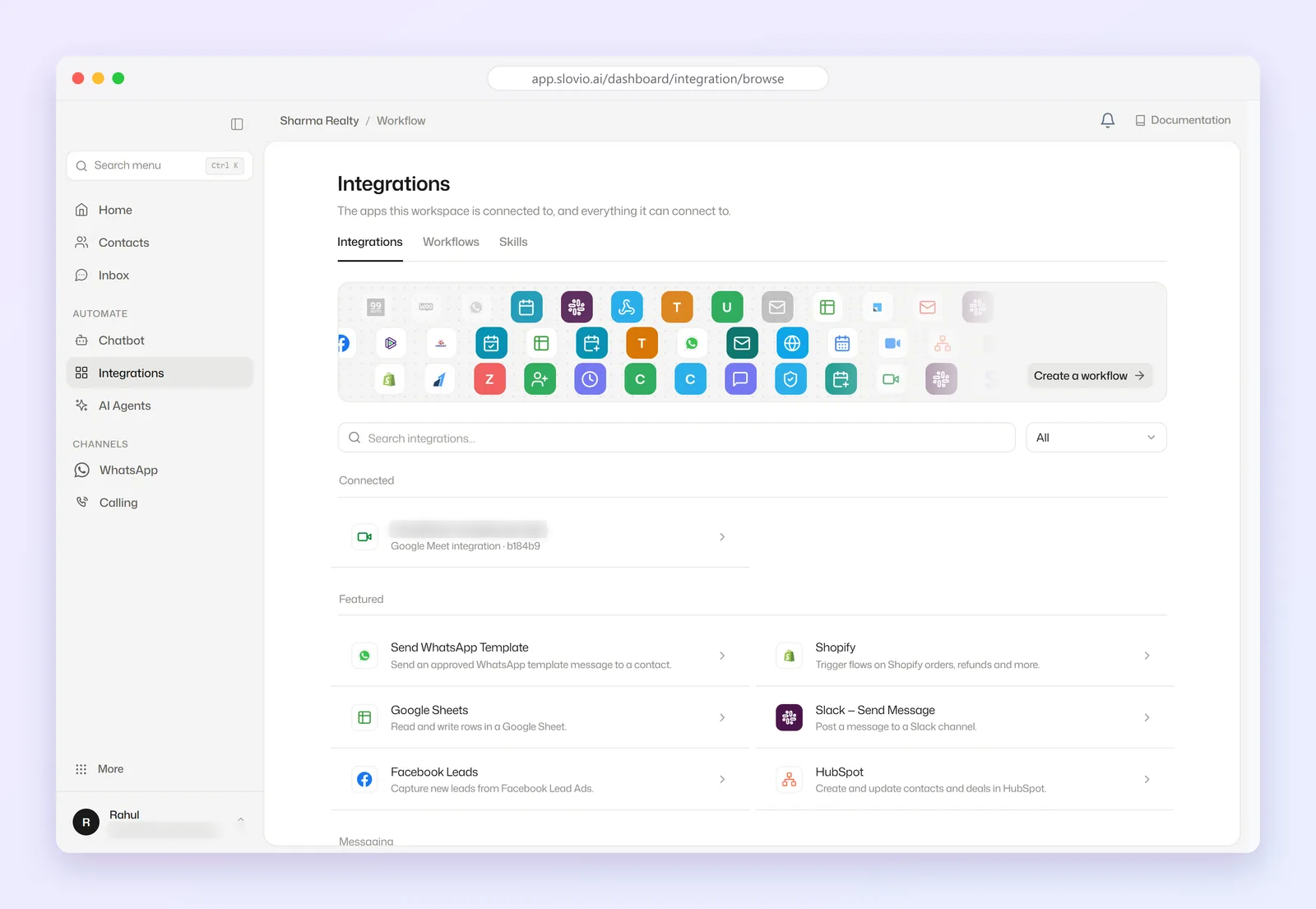
The categories are Messaging, CRM & Leads, Commerce, Payments, Google Workspace, Developer, Triggers and More. Rows marked Coming soon can't be used yet.
Available integrations
| Category | Integrations |
|---|---|
| Messaging | Send WhatsApp Template, Send SMS, Slack — Send Message, Slack, Gmail, Zoom |
| CRM & Leads | IndiaMART, Facebook Leads, LeadSquared, HubSpot |
| Commerce | Shopify, Shiprocket |
| Payments | Razorpay, Stripe |
| Google Workspace | Google Sheets, Google Calendar, Google Meet, Book a Meeting |
| Developer | HTTP Request |
| Triggers | Contact Created, Meeting Booking, Contact Meeting, Schedule, Webhook, Appointment, Google Sheets (new row) |
Other items, such as ZeptoMail and the ticket triggers, appear under More or Triggers.
Open an integration
Select any row to open its page. It shows what the integration does, whether it's a Trigger or an Action, suggested Skills where there are some, and Templates. Select a template to create a workflow from it. Use in a workflow takes you to the Workflows tab.
Connect an account
You connect an account inside the workflow block that needs it:
- Google (Sheets, Gmail, Calendar, Meet), Slack, HubSpot and Zoom: sign in with that service and allow access.
- Shopify: enter your store domain (for example
yourstore.myshopify.com) and select Connect Shopify. - IndiaMART: no sign-in. Paste the trigger's Webhook URL into IndiaMART's Lead Manager → Push API. See the IndiaMART example.
- Razorpay, Stripe and others: follow the block's connect section.
Once connected, the account is listed under Connected and is available to all your workflows.
Manage a connected account
Select an account under Connected to open its page:
- Used by lists every workflow and chatbot that uses the account, or says "Nothing — safe to disconnect."
- Credential ID shows the account's ID with a copy button.
- Display name lets you label the connection, for example "Sales Gmail", so it's easy to pick. Select Save.
- Reconnect opens the integration to connect again.
- Disconnect removes it. If anything still uses it, Slovio lists those workflows and chatbots and asks you to confirm; they start failing once it's gone.
Tools without a built-in integration
Use the Webhook trigger (the tool calls Slovio) and the HTTP Request action (Slovio calls the tool). See Trigger a workflow from your own system.
Common questions
Is Integrations included in Free Forever?
No. Free Forever doesn't include Integrations or workflows; the page shows an upgrade message. See Plans and subscription.
I connected Google twice by mistake. What should I do?
Open each account under Connected, check Used by, and disconnect the one nothing uses. Use Display name to tell the rest apart.
Why is an integration marked Coming soon?
It isn't ready to run yet, so it can't be added to a workflow. Use the Webhook trigger or HTTP Request in the meantime.
Can I create a workflow without a template?
Every workflow starts from a template on an integration page. If none fits, pick the closest one and change its blocks in the builder.
Stuck, or is something here out of date? Tell the team — we reply within a working day.