Account security and 2FA
How to turn on two-factor authentication (2FA) in Slovio, sign in with a code, require 2FA for team members, and change your password safely.
2 min readUpdated
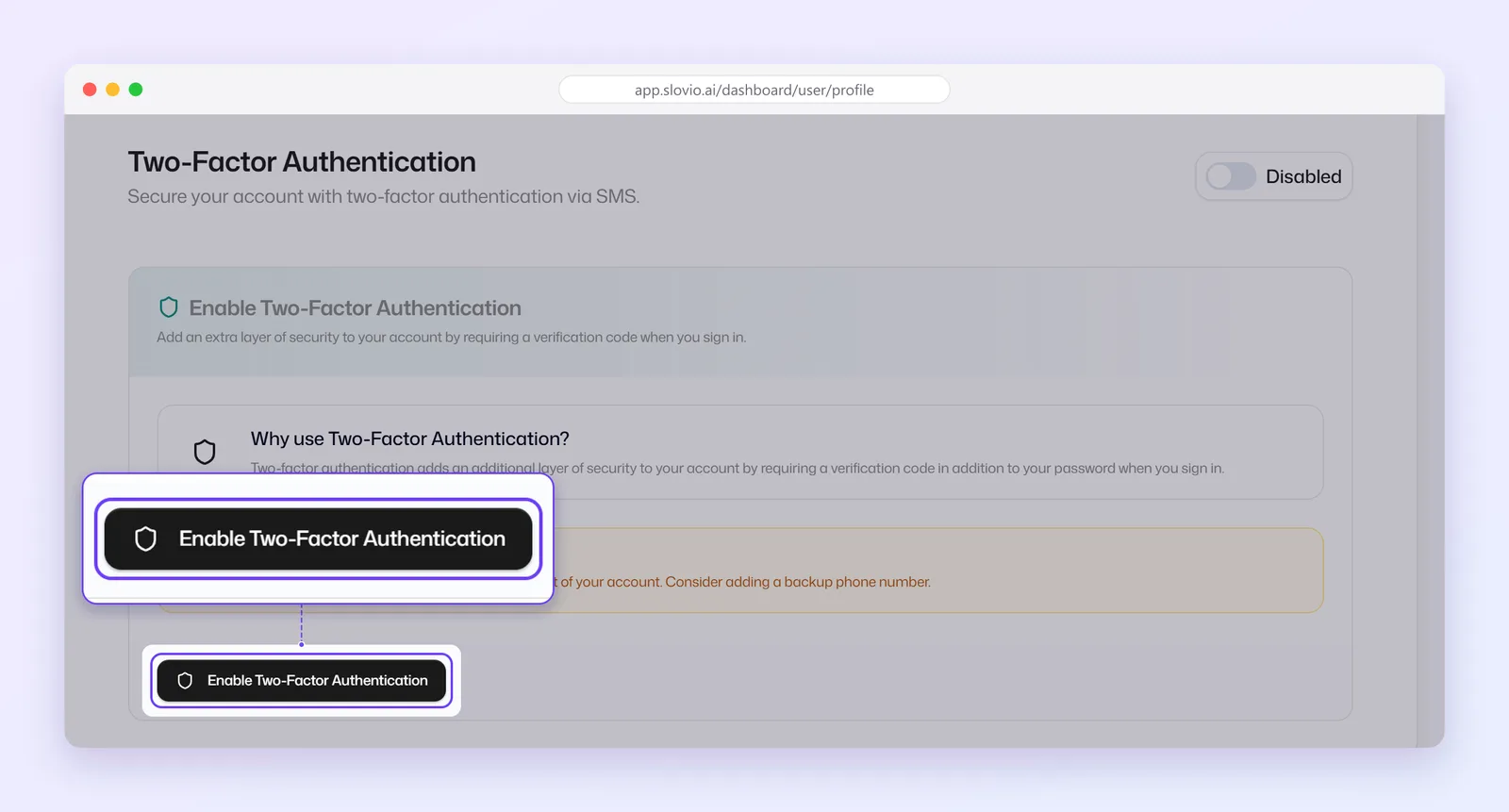
Two-factor authentication (2FA) asks for a code sent to your phone each time you sign in. Turn it on in the account menu → Profile & account → Security → Enable Two-Factor Authentication.
Turn on two-factor authentication
Open the account menu (your avatar, bottom left) → Profile & account → Security.
Under Two-Factor Authentication, select Enable Two-Factor Authentication.
In Add Phone Number, enter your phone number and your Current password.
Select Active 2FA. Two-factor authentication is on straight away.
Add more numbers under Registered Support Numbers, so you are not locked out if you lose your phone.
Turn off two-factor authentication
Switch it off, then confirm with your current password in Turn off two-factor authentication.
Sign in with 2FA
- Enter your email and password as usual.
- On Verify it's you, choose where to receive the code and select Send code.
- On Two-factor verification, enter the code and select Verify & continue.
Require 2FA for a team member
The account owner decides for each person:
- Go to More → Workspace → Agents.
- Open the person's menu → Edit.
- Set Two-factor authentication to Required, then save.
New team members start with 2FA Disabled, so set it when you add them.
Change your password
Account menu → Profile & account → Security. A password needs at least 8 characters, with a letter and a number or symbol.
Good practice
- Give everyone their own login. Never share the owner account.
- Use roles to give people only what they need. See Team members and roles.
- Suspend people who leave instead of deleting them, so their conversation history stays.
Worked example
Farhan owns Khan Pharma Distributors, Hyderabad. He turns on 2FA with his number +919849012345 and adds his second mobile +919849067890 under Registered Support Numbers. He then edits each of his four agents and sets Two-factor authentication to Required.
Result: at every sign-in, each person chooses a registered number, receives a code and enters it on Two-factor verification. If Farhan loses his phone, he can pick his second number.
Common questions
What happens if I lose the phone that gets my codes?
Choose another number from Registered Support Numbers on Verify it's you. Add a backup number now so you have one.
Can I force my whole team to use 2FA?
Yes, per person. Edit each team member and set Two-factor authentication to Required.
What are the password rules?
At least 8 characters, with at least one letter and at least one number or symbol.
Do I need my password to turn 2FA off?
Yes. Slovio asks for your current password before turning it off.
Stuck, or is something here out of date? Tell the team — we reply within a working day.