Build a chatbot
Build a chatbot in Slovio: create it, choose when it runs and on which channels, test it in a simulated chat, and deploy it live on WhatsApp or Instagram.
3 min readUpdated
A chatbot answers on your channels automatically: menus, FAQs, lead capture, or an AI conversation that hands over to your team. You create it under Chatbot, build it from blocks on a canvas, test it in a simulated chat, and select Deploy to put it live.
Create a chatbot
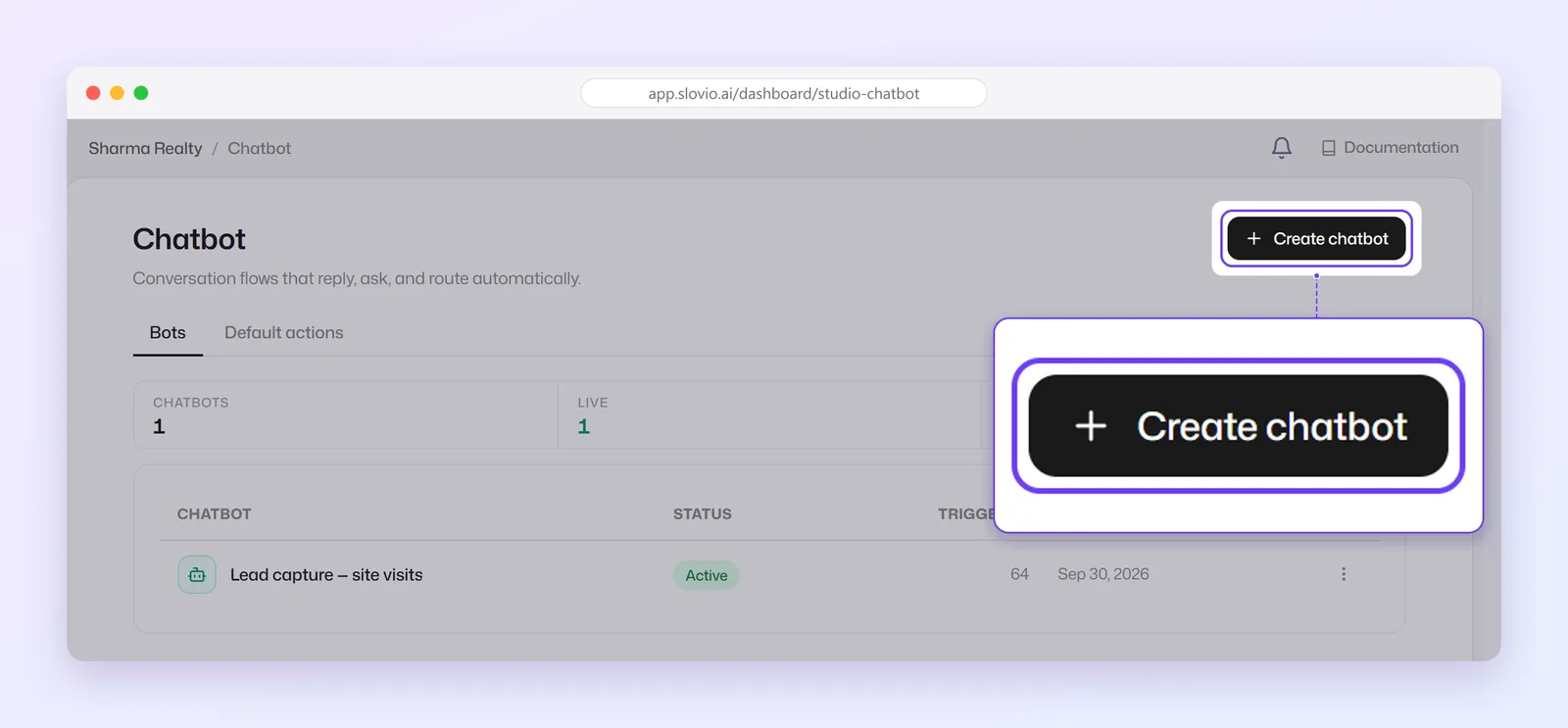
Sidebar → Chatbot → Create chatbot.
Under What should this bot do?, pick AI bot, Keyword menu, FAQ from your docs or Blank canvas.
Name it (for example "Support menu") and select Create. The builder opens.
Choose when it runs
Every bot starts with a Chat Trigger block:
| Field | What it does |
|---|---|
| Answer any message | Makes this the channel's AI bot: it replies to anything no keyword bot already handles. |
| Trigger keywords + Matching | Runs only when the message matches a keyword: Exact match or Contains. |
| Never trigger on | If the message contains any of these, the bot stays quiet, even when a keyword also matches. |
| Channels | Which channels the bot runs on. This is how you put a bot on WhatsApp, Instagram or another channel. |
For Instagram you can also trigger on post comments (with a public reply and a private DM), comments during a Live, story mentions and post mentions.
Build the conversation
Drag blocks from the palette and connect them. See Chatbot blocks for every block, and Variables in chatbots and workflows to reuse answers in later messages. For a complete build, see the WhatsApp lead capture chatbot example.
Test it
Select Test on the canvas to chat with the bot in a simulated conversation. The panel is marked Simulated — nothing is sent. The test runs the saved bot, so if you have unsaved changes, select Save & test.
Go live
Select Deploy. The button then shows Live, or Update when you have unsaved changes to a live bot. Deploy is refused while any block has an error; fix what the builder highlights.
To stop a bot, open its menu in the list → Pause bot. Set live turns it back on.
Chatbot settings
In the builder's ⋯ menu → Chatbot settings:
- Wait for a reply: how long the bot waits at a question or menu before the session ends, in minutes or seconds.
- Let old buttons restart the bot: whether tapping a button from a finished conversation starts the bot again.
- Send a message when the session ends: an optional closing message, and how long after to send it.
Logs
Bot list → a bot's menu → Logs shows each session and how it ended: Completed, Failed, Timed out, Abandoned, Replaced, Awaiting reply, Resumed or Handed to agent. Export sessions in the same menu downloads them.
Common questions
What happens when no chatbot matches a message?
Your default actions reply instead, such as the fallback or out-of-hours message. See Default actions and working hours.
Can one bot run on WhatsApp and Instagram?
Yes. Select both channels under Channels on the Chat Trigger.
Why does a customer who types the keyword again get no answer?
While the bot waits at a question or menu, new messages go to that step, including the keyword. Shorten Wait for a reply in Chatbot settings if this happens often.
Does testing send real messages?
No. The Test panel simulates the whole conversation; nothing is sent or charged.
Stuck, or is something here out of date? Tell the team — we reply within a working day.