Find your way around
A map of the Slovio app: the left sidebar, channel pages, the More menu with CRM, Workspace, Growth, Insights and Developer, the account menu and menu search.
4 min readUpdated
The Slovio app has a left sidebar with Home, Contacts and Inbox at the top, an Automate group, a Channels group, and More near the bottom for CRM, settings, growth, insights and developer tools. Your account menu sits under your avatar at the very bottom.
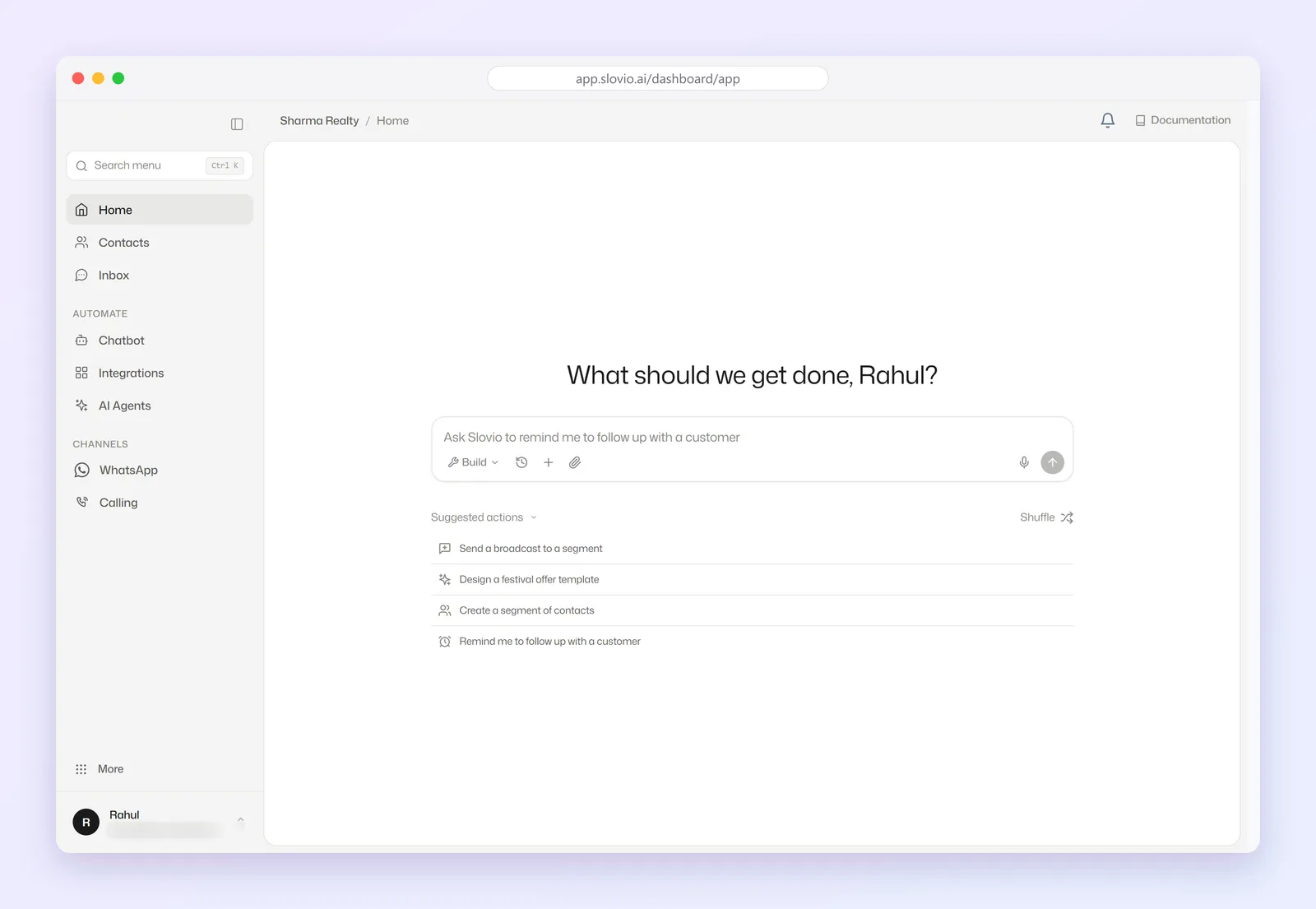
The left sidebar
| Item | What it is |
|---|---|
| Home | The Slovio assistant. It asks "What should we get done?" and suggests next steps. |
| Contacts | Your contact list, segments and each contact's timeline. |
| Inbox | All conversations from every channel, shared with your team. |
Automate
| Item | What it is |
|---|---|
| Chatbot | Build chatbots and set default actions. |
| Integrations | Connect other tools, plus skills and workflows. Shown when your plan includes workflows. |
| AI Agents | AI agents, skills and your knowledge bases. |
Channels lists one row per channel type you have added: WhatsApp, RCS, SMS, Instagram, Facebook, Telegram, Web chat and Calling. A channel appears once you add it, even before setup is finished. Calling appears whenever your plan includes calling. A number shows when you have more than one of a type, and a lock shows when your plan does not include that channel.
Inside a channel
Select a channel in the sidebar to open it:
| Channel | What you see |
|---|---|
| WhatsApp, RCS | Tabs Overview, Broadcast and Templates. |
| SMS | Tabs Dashboard, Templates, Senders and Broadcast. |
| Facebook, Telegram, Web chat | A summary page with a link to the Inbox. |
| The sidebar switches to Instagram's own menu: Dashboard, Comment Bot, Growth, Posts, Automations and Settings. | |
| Calling | The sidebar switches to the calling menu: Overview, Voice Agents, Campaigns, Tools, AI Models, Numbers, Departments, IVR, Team, Business hours, Live Calls, Call Logs, Voicemail, Recordings, Reports, API and Webhooks. |
Select Back at the top of the Instagram or Calling menu to return to the main sidebar.
The More menu
Hover over More to open a two-part menu: pick a group on the left, then an item on the right.
| Group | Items |
|---|---|
| CRM | Contacts, Companies, Opportunities, Tickets, Scheduled tasks, Meetings, Segments |
| Workspace | Agents (your team), Channels, Canned messages, API keys (your own AI provider keys) |
| Growth | Create ad, Ads dashboard, Smart links |
| Insights | Analytics, CSAT, Message log, Monthly summary, Export archive, AI token usage |
| Developer | APIs: tabs API Keys, Endpoints, API Tester, Webhooks and Documentation |
Selecting More itself opens the Manage page, which lists the Workspace, Growth, Insights and Developer items. CRM items are only in the hover menu.
The account menu
Select your avatar at the bottom of the sidebar:
- Profile & account: your details, business, security, notifications and tone
- Subscription & wallet: balance, recharge, orders, invoices and country pricing
- Plans & pricing: compare and change plans
- Help & Support: shown to the account owner
- Manage workspace: opens the Manage page
- Appearance: Light, Dark or System
- Sign out
Search the sidebar
Press Ctrl K (⌘K on a Mac) or select Search menu to jump to a sidebar item: Home, Contacts, Inbox, Chatbot, Integrations or AI Agents. Inside the Instagram or Calling menu, it searches that menu. Items under More are not included.
Worked example: where things are
Rahul, the new marketing hire at Verma Sweets, Delhi, needs to:
- Send a Diwali offer on WhatsApp: sidebar → WhatsApp → Broadcast.
- Check the WhatsApp template is approved: WhatsApp → Templates.
- See how the last campaign did: More → Insights → Analytics.
- Add a colleague: More → Workspace → Agents (account owner only).
- Recharge the wallet: avatar → Subscription & wallet.
Common questions
Where are broadcasts and templates?
Inside each channel. Open WhatsApp, RCS or SMS in the sidebar and use the Broadcast and Templates tabs.
Where are call campaigns?
Open Calling in the sidebar, then Campaigns in the calling menu.
Why can't I find Companies on the Manage page?
CRM items are not on the Manage page. Hover over More and pick CRM.
What is the difference between the two API keys screens?
More → Workspace → API keys holds your own AI provider keys. More → Developer → APIs → API Keys holds the keys for Slovio's REST API.
Why does Ctrl K not find Tickets?
Menu search only covers the main sidebar items. Use More → CRM → Tickets.
Stuck, or is something here out of date? Tell the team — we reply within a working day.