Companies, opportunities and tasks
How to track companies and deals in the Slovio pipeline, and schedule follow-up tasks with reminders on WhatsApp, email or SMS, including recurring tasks.
3 min readUpdated
Companies, deals and follow-ups are under More → CRM. Add a company in Companies, track a deal through its stages in Opportunities, and plan follow-ups with reminders in Scheduled tasks.
Add a company
- Go to More → CRM → Companies.
- Select New company, enter the Business name and select Add.
- Open the company to fill in Industry, Website, Domain, Phone, Email, Address and Notes.
To link a contact to a company, open the contact and set its company.
Track a deal as an opportunity
- Go to More → CRM → Opportunities and select New opportunity.
- Enter the Opportunity title and Company (both required), and optionally the Stage and Amount.
- Select Create.
View deals as a List or a Board. To move a deal, change the stage on its card. Open pipeline shows how many deals are open and their total value.
Default stages: Discovery, Qualified, Proposal, Negotiation, Won and Lost.
Schedule a task
There are two places to create a task. Both need a contact.
From Scheduled tasks
Go to More → CRM → Scheduled tasks and select New task.
In New scheduled task, pick the contact, the title, due date and time, and a priority: Low, Medium, High or Urgent.
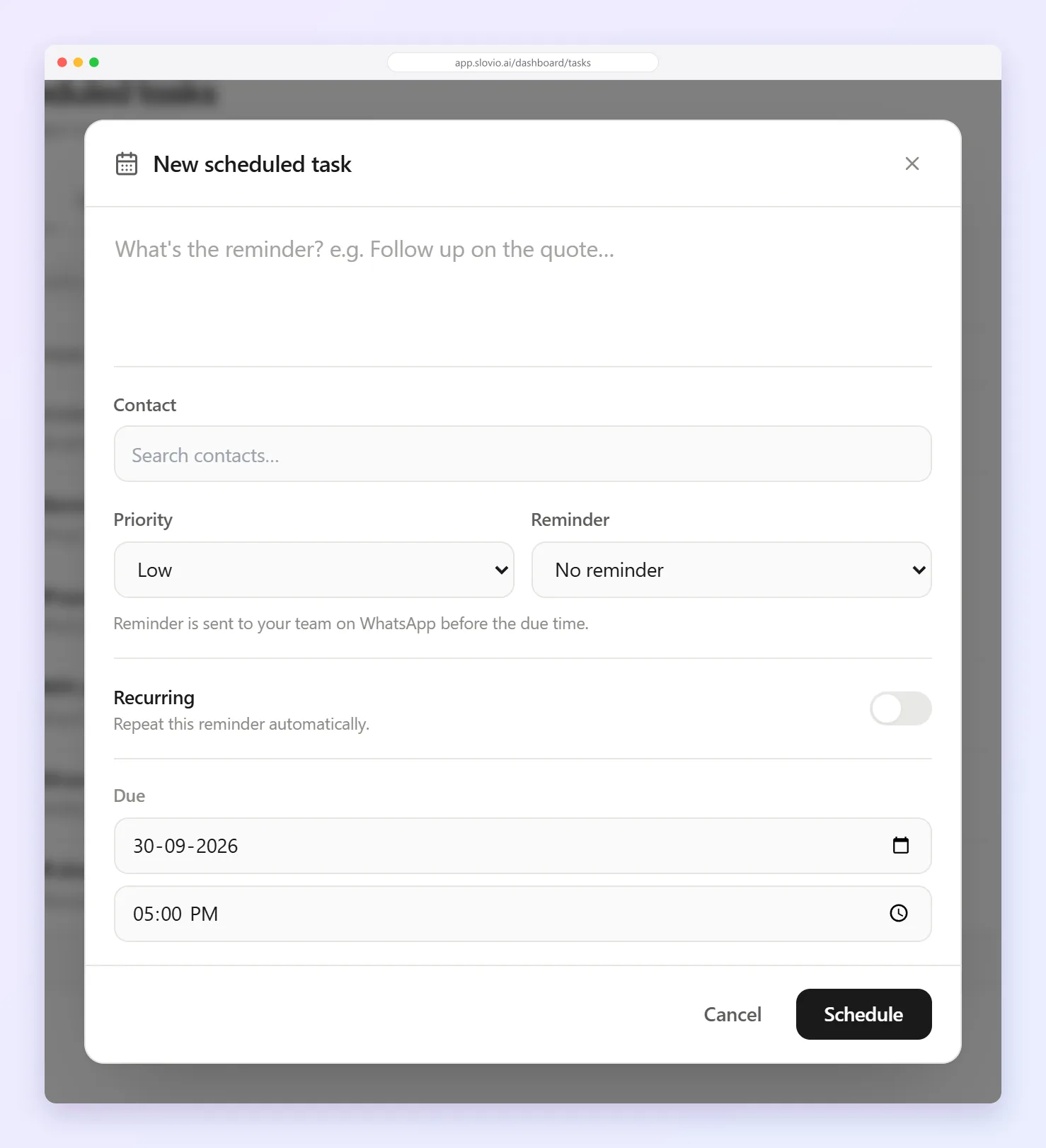
Choose a reminder: No reminder, 30 min before, 1 hour before or 1 day before.
Optional: switch on Recurring ("Repeat this reminder automatically"). Choose Daily, Weekly, Monthly or Yearly, and when it ends: No end, On date, or After… a number of occurrences (up to 365).
Select Schedule.
The reminder goes to you on WhatsApp. A recurring task must have a reminder, so 1 hour before is picked for you when you switch on Recurring.
From a contact's Tasks tab
Open a contact → Tasks. Here you have more reminder options and more control over who gets it:
- Reminder: 15 min, 30 min, 1 hour, 2 hours, 6 hours, 12 hours or 1 day before.
- Under More…, Notify: Me, Assignee and/or Contact.
- Via: WhatsApp, Email and/or SMS. The default is Me by WhatsApp.
Recurring tasks can only be set up from Scheduled tasks.
Find your tasks
Scheduled tasks has the tabs All tasks, Due today, Overdue and Upcoming, and a search box. Switch between List and Calendar. No reminder is sent for a task that is completed, cancelled or deleted.
An AI agent can also create tasks with the Create Task tool, when the conversation has a contact. See AI agents for workflows.
Worked example: a monthly follow-up
Deshmukh Industrial Supplies, Nashik, is quoting ₹4,80,000 to Patil Auto Components.
- Companies → New company → "Patil Auto Components" → Add.
- Opportunities → New opportunity: title "Conveyor spares FY27", company Patil Auto Components, stage Proposal, amount 480000 → Create.
- Scheduled tasks → New task: contact Suresh Patil (+919822012345), title "Call about quote", due 5 Oct 2026 at 11:00, priority High, reminder 1 day before, Recurring monthly, ends After… 3 occurrences → Schedule.
Result: the deal shows in Open pipeline under Proposal. The salesperson gets a WhatsApp reminder at 11:00 on 4 Oct, 4 Nov and 4 Dec.
Common questions
Why can't I drag deals on the Board?
The Opportunities board uses a stage selector on each card. Change the stage there to move the deal.
Can a task reminder go to the customer?
Yes, from the contact's Tasks tab. Under More…, choose Contact in Notify and pick the channel under Via.
Why didn't I get a WhatsApp reminder?
WhatsApp reminders need a WhatsApp channel and a reminder template set up for tasks. Also check the task is not completed or cancelled.
Can I create a task without a contact?
No. Every task belongs to a contact.
Stuck, or is something here out of date? Tell the team — we reply within a working day.