Workflow templates and skills
Start a Slovio workflow from a ready template in Integrations, and add or import skills that give the AI Agent block reusable instructions, including .md files.
4 min readUpdated
Every integration page in Slovio has Templates: ready starting points that create a real workflow in one click and open it in the builder. Many pages also offer Skills: short markdown instructions you add to your workspace and attach to an AI Agent block. This page explains both.
Use a workflow template
- Sidebar → Integrations.
- Open an integration, for example Shopify or IndiaMART.
- Under Templates, select one.
Slovio creates the workflow with the template's trigger (and, for most templates, its first action already connected) and opens it in the builder. Fill in the empty fields, such as which WhatsApp template to send, then select Deploy. The workflow also appears on the Workflows tab.
A template shows on the page of every integration it uses. "New Facebook lead → Log to Sheet", for example, is listed under both Facebook Leads and Google Sheets. An integration with no template of its own offers Start from a new contact, which starts on Contact Created.
What templates are available
There are 68 starter templates. They fall into these groups:
| Group | Examples |
|---|---|
| Order and payment updates on WhatsApp | Order confirmation, Abandoned cart recovery and Refund issued (Shopify), Payment received → WhatsApp receipt (Razorpay), Shipment update → WhatsApp tracking (Shiprocket) |
| Lead response | New enquiry → WhatsApp reply (IndiaMART), New lead → WhatsApp welcome (Facebook Leads), New IndiaMART enquiry → capture in LeadSquared |
| Support and tickets | Ticket raised → tell the customer you have it, Ticket resolved → ask how it went |
| Meetings | Booking confirmed → WhatsApp confirmation, Appointment booked → add it to Google Calendar, Meeting booked → create the Zoom call |
| Team alerts and logging | Ticket raised → alert the team on Slack, New contact → Log to Sheet, Every morning → post a summary to Slack |
| AI | New lead → AI qualification, Slack question → AI answer, Incoming data → AI processing |
| Developer | New order → notify your ERP, Reply to an inbound webhook, Webhook health check (200 OK) |
Worked example: Shopify order confirmation
Kavya Handlooms in Jaipur sells sarees on Shopify and wants a WhatsApp message for every order.
Integrations → Shopify → Templates → Order confirmation.
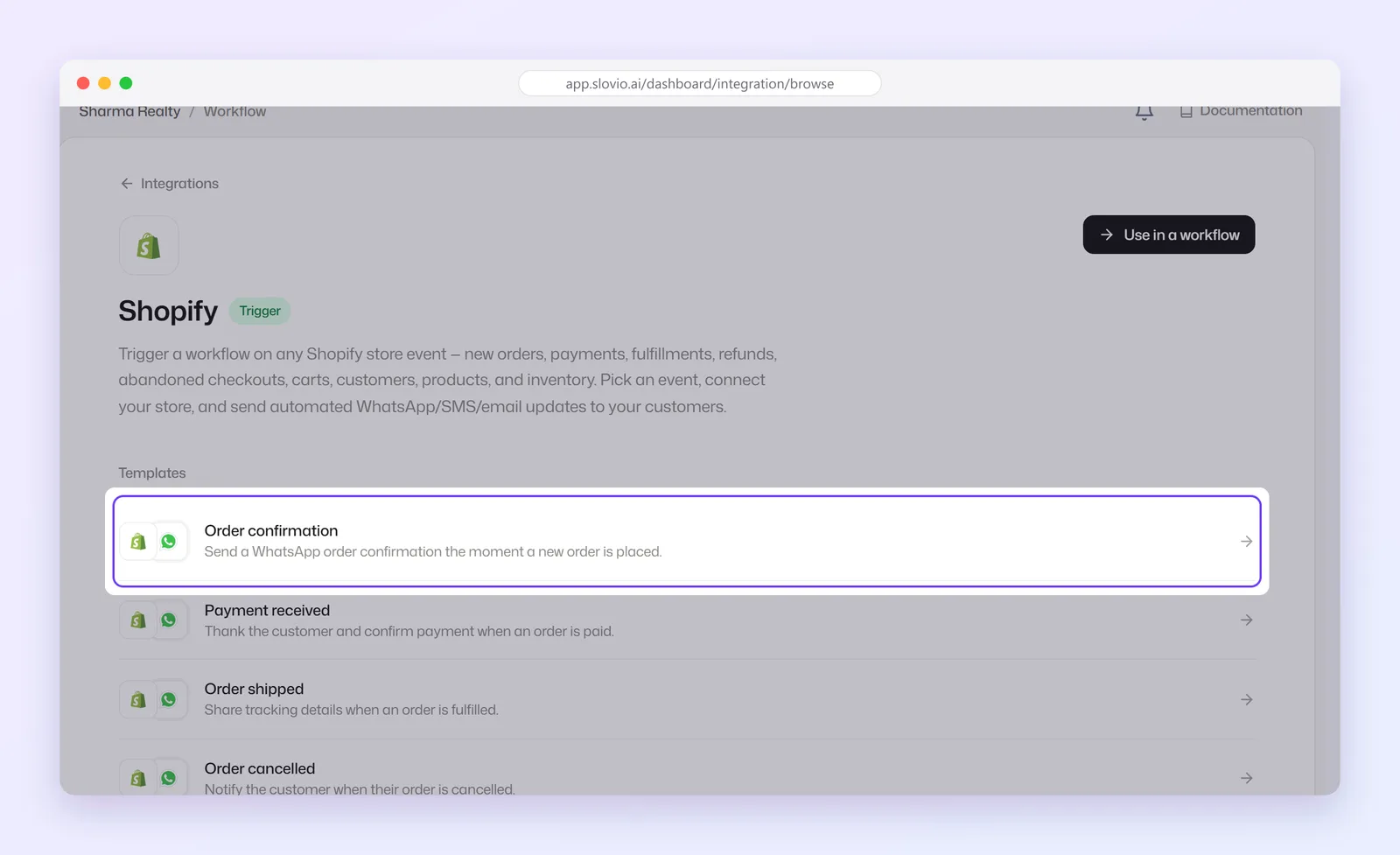
The builder opens with a Shopify trigger and Send WhatsApp Template. On the trigger, connect the store (for example
kavyahandlooms.myshopify.com).On Send WhatsApp Template, select Choose a template, pick the approved template "Hi {{1}}, your order {{2}} for ₹{{3}} is confirmed", and fill the Message variables from the Shopify list offered in the picker.
Select Deploy.
When a customer places order #1052 for ₹4,850, she gets "Hi Meera, your order #1052 for ₹4,850 is confirmed" on WhatsApp.
Add a suggested skill
Many integration pages, such as Send WhatsApp Template, Slack, HubSpot and Stripe, list ready-made Skills above Templates. Select Add to copy one into your workspace; the row then shows Added.
Create or import your own skill
Sidebar → Integrations → Skills tab → Add Skill.
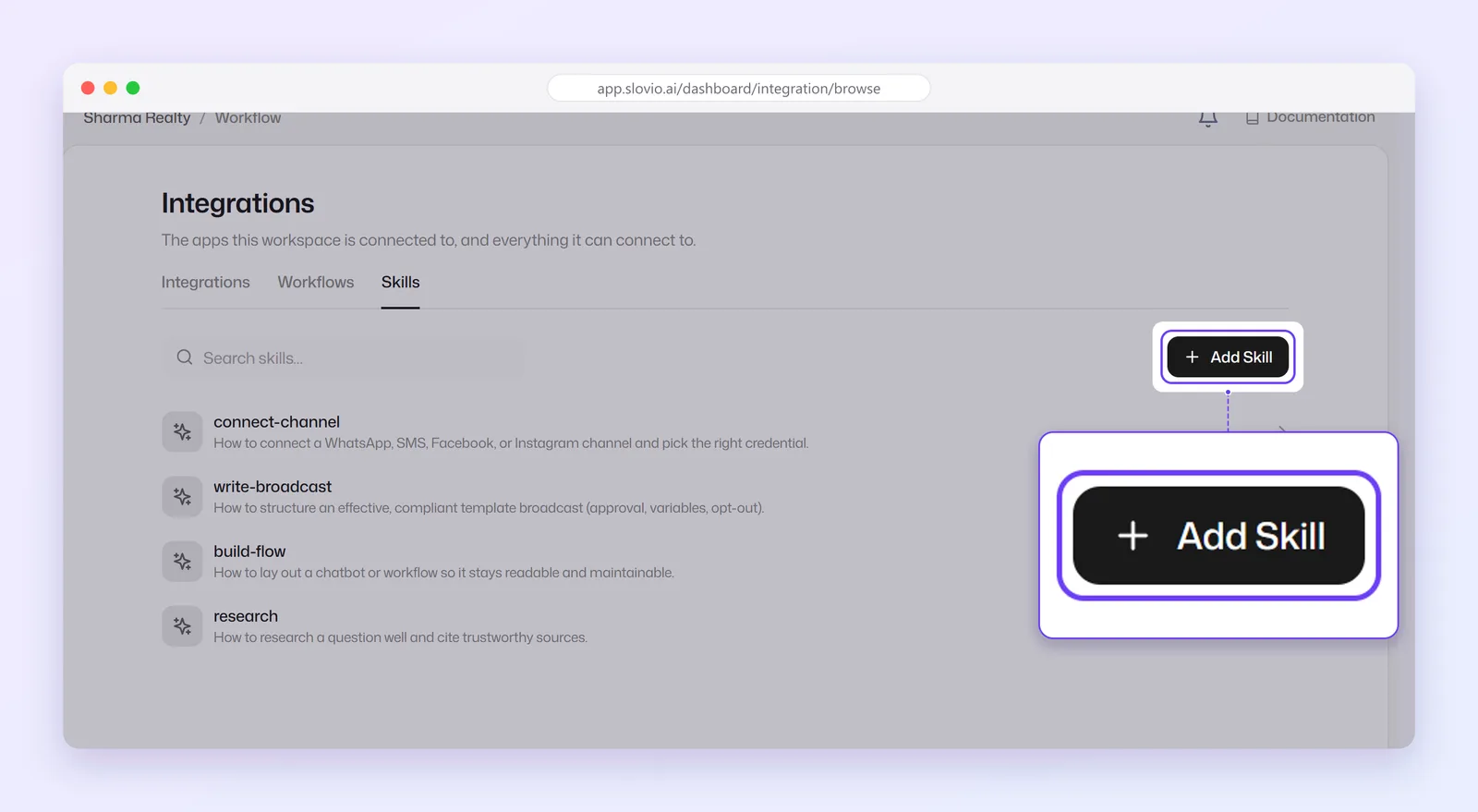
On Create, fill in:
- Name: lowercase letters, digits and hyphens, up to 64 characters, for example
gst-invoice-replies. - Description: one line on what it does and when to use it, up to 1,024 characters.
- Content: the instructions, in markdown, up to 50,000 characters.
- Name: lowercase letters, digits and hyphens, up to 64 characters, for example
Or open Import and either paste a public GitHub
SKILL.mdlink and select Fetch, or select Upload a .md file (up to 100 KB). Slovio readsname:anddescription:from the file's front matter, or takes the name from its first heading.Select Create.
A .md file you can import looks like this:
---
name: gst-invoice-replies
description: How to answer customer questions about GST invoices.
---
# GST invoice replies
- Always quote the invoice number.
- Our GSTIN is shown on every invoice; never type it from memory.
- For corrections, ask for the order number and hand over to accounts.
To use a skill, open an AI Agent block in a workflow → Advanced settings → Skills, and pick it. Its content is added to the AI's instructions each time the block runs. See Workflows.
Common questions
Does a template send anything as soon as I pick it?
No. It only creates the workflow. Nothing runs until you fill in the blocks and select Deploy.
Can I change a workflow after creating it from a template?
Yes. It's an ordinary workflow: add, remove or reconnect any block in the builder.
Where else can I manage skills?
The same skills appear in the AI Agents hub. Editing one in either place changes it everywhere.
Why won't my skill save?
Check the Name: it must be kebab-case, like my-skill, with no spaces or capitals.
Are templates and skills available on Free Forever?
Templates aren't. Free Forever doesn't include Integrations or workflows, so integration pages show an upgrade message instead. See Plans and subscription.
Stuck, or is something here out of date? Tell the team — we reply within a working day.