Default actions and working hours
Set up Slovio default actions per channel: welcome message, fallback reply, out-of-hours reply, working hours, reply material, and opt-in and opt-out keywords.
2 min readUpdated
Default actions are the replies Slovio sends when no chatbot handles a message, such as a welcome message, a fallback reply or an out-of-hours reply. You set them per channel under Chatbot → Default actions, pick the reply each one sends from your reply material, and save.
Set up a default action
Sidebar → Chatbot → Default actions tab.
Pick the Channel, for example your WhatsApp number.
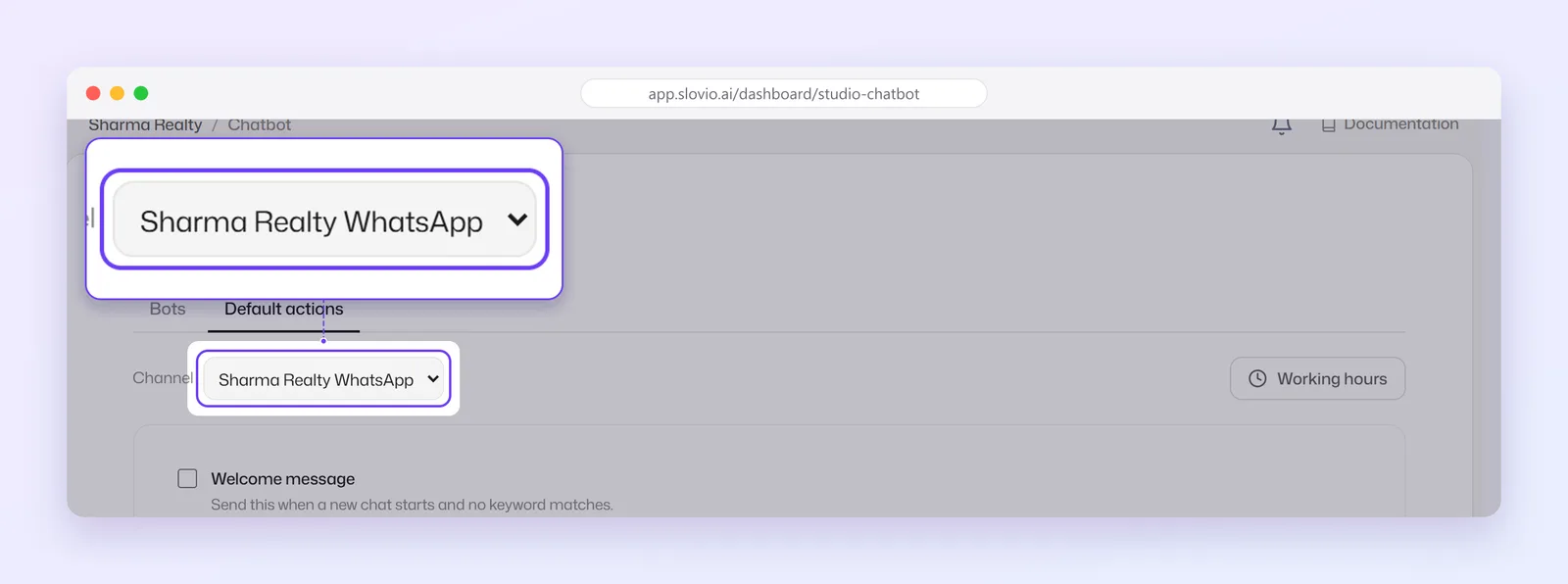
Tick the actions you want (see the table below).
For each ticked action, select Choose reply and pick the message to send. See "Choose the reply" below.
Select Save changes.
| Action | When it sends |
|---|---|
| Welcome message | A new chat starts and no keyword matches. |
| Fallback reply | No keyword matches and no other default action applies. |
| Outside working hours | A message arrives outside your working hours. |
All three reply inside WhatsApp's 24-hour window, because each one answers a message the customer has just sent. See The WhatsApp 24-hour window.
Choose the reply
Choose reply opens the reply material library, titled with the action you're setting up. Its tabs are:
| Tab | What you can pick |
|---|---|
| Text | A plain text message. |
| Media | Image, Document, Audio or Video. |
| Chat Bot | A chatbot flow to start. |
| Interactive | A message with buttons or a list. |
Select one item (only one per action), then Use this. The row then shows the reply's name; select it to change it. If a chosen reply is later deleted, the row shows Reply was deleted — pick another.
Options
- Keep the last assignee: when a closed or expired chat gets a new message, it goes back to its last agent instead of the bot.
- Always send out-of-office: send the out-of-hours reply even when a keyword matches.
- Round-robin assignment: share new chats evenly between the users on the assigned team.
Set working hours
- On the Default actions tab, pick the Channel.
- Select Working hours.
- Turn on each day you work and set its start and end time, for example Monday to Saturday, 10:00 to 19:00.
- Select Save.
Working hours are set per channel. They drive the Outside working hours reply and the Working Hours block in chatbots.
Opt-in and opt-out keywords
Under Opt-in and opt-out keywords, each channel has an Opt in and an Opt out card. Add the words a customer types (type a keyword and press Enter), for example start and stop, and the reply they get. Then select Save. A contact who opts out shows as Opted out on their contact record.
Common questions
Why is Save changes greyed out?
Either nothing has changed or a ticked action has no reply chosen. The message above the button names the action to fix.
Do default actions run when a chatbot is live?
Only when no chatbot handles the message. If a bot handles it, the bot replies instead.
Can each WhatsApp number have different working hours?
Yes. Working hours and default actions are saved per channel. Pick the channel before editing.
Does it matter if I type a keyword in capitals?
Keywords are saved in lower case, so you can type them either way when you set them up.
Stuck, or is something here out of date? Tell the team — we reply within a working day.