Contacts and import
How to add contacts in Slovio, import them from an Excel sheet with auto-detected columns and segments, then filter, bulk-edit, export and read timelines.
5 min readUpdated
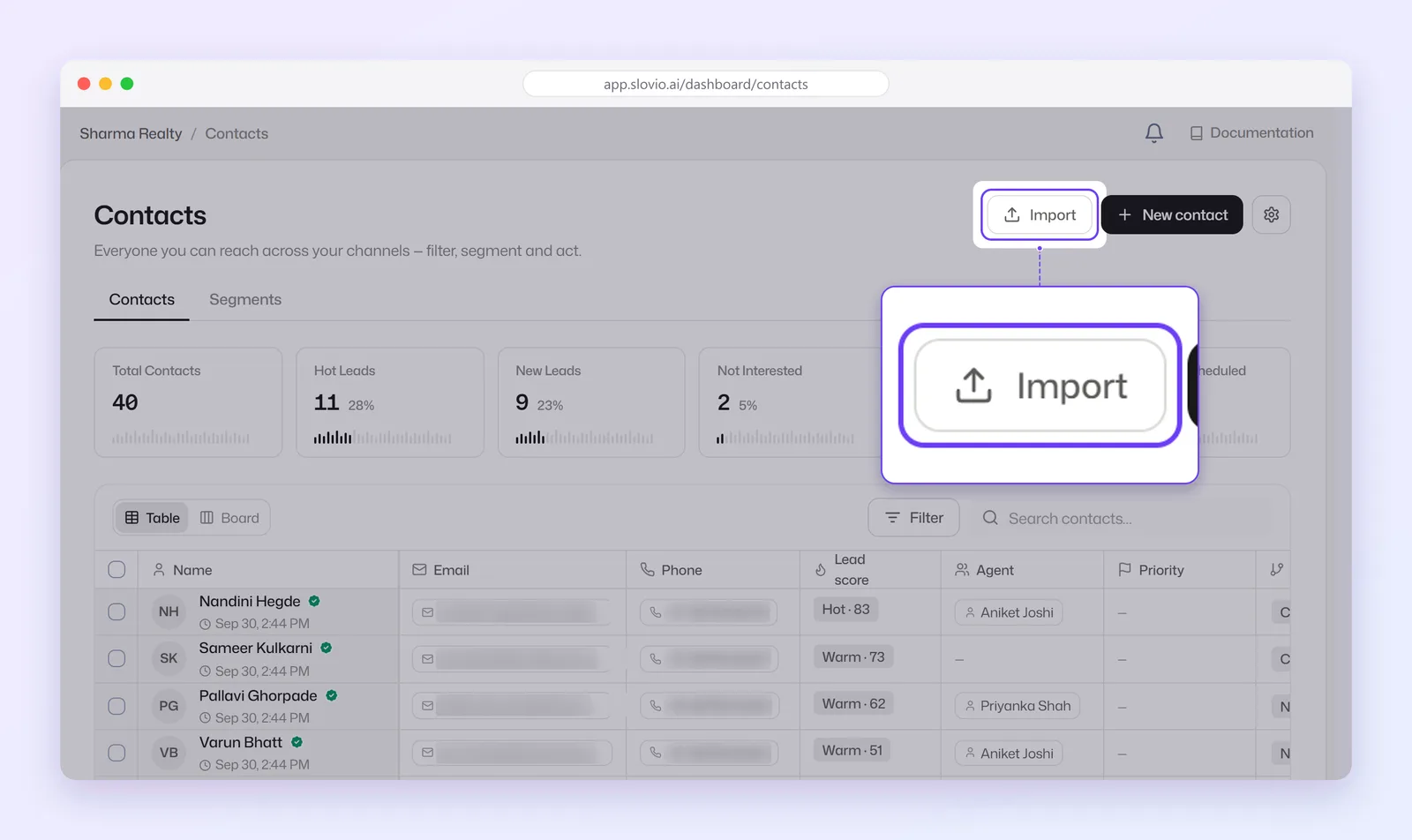
To add contacts in bulk, go to Contacts → Import and upload an Excel file (.xlsx or .xls). Slovio detects standard columns such as phone and name, saves every other column as a custom attribute, and can create a segment for each value in a column.
Add one contact
- Go to Contacts → New contact.
- On Basic Info, enter First Name and Phone Number (both required). Last Name, an alternative number, Email, WhatsApp Marketing Opt-In and Notes are optional.
- On Pipeline & Tags, set the pipeline fields, tags and Custom Attributes if you use them.
- Select Add Contact.
Prepare your Excel sheet
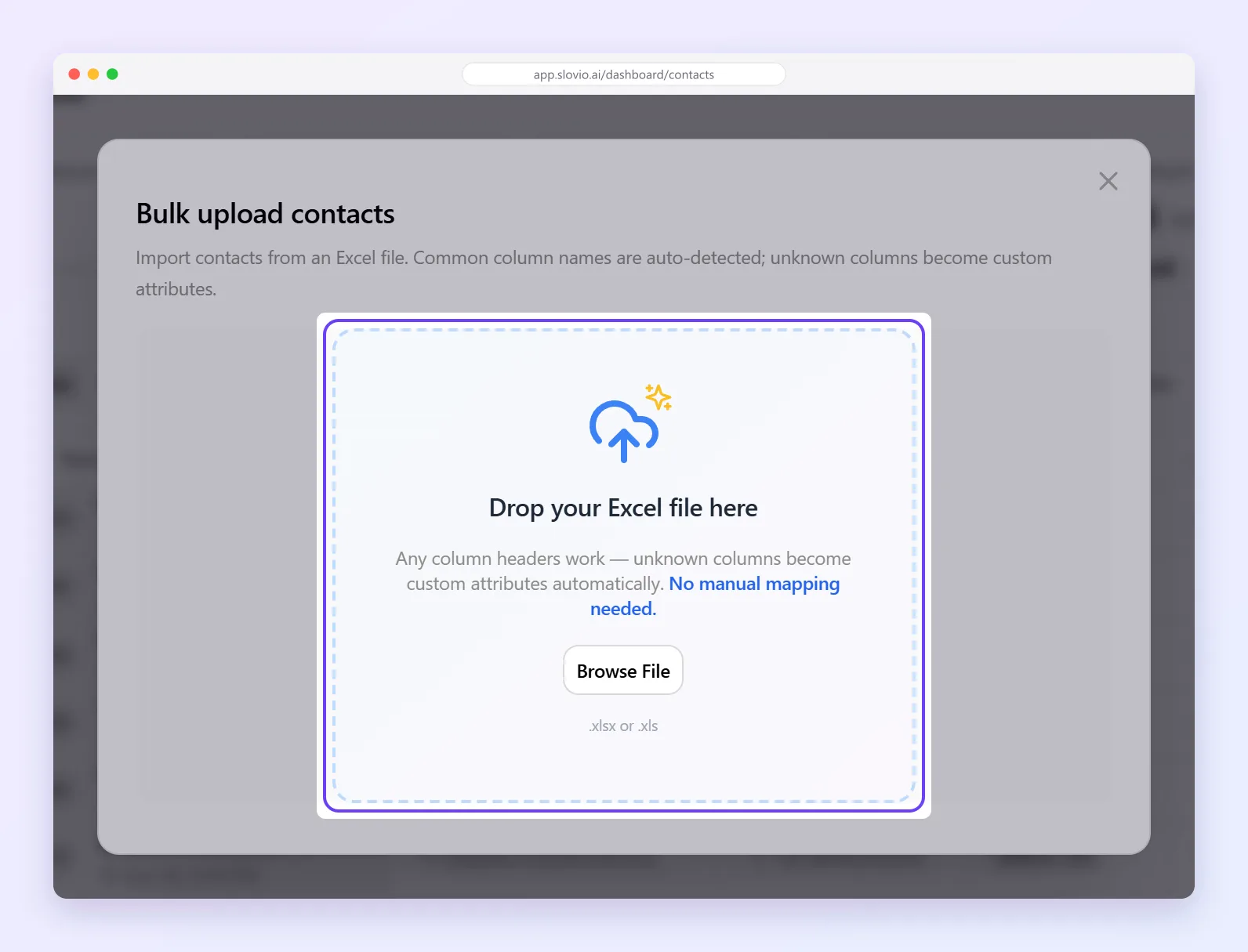
- Excel only: .xlsx or .xls, up to 150 MB. CSV is not accepted, so save it as .xlsx first.
- The first row must be column headers. Each header can be used only once.
- There is no row limit.
Slovio recognises these headers in any letter case:
| Saved as | Headers recognised |
|---|---|
Phone (contact_number) |
contact_number, phone, mobile, phone number, phone_number, mobile number, mobile_number, contact number, number, phone no, mobile no |
First name (firstName) |
firstName, name, first name, first_name, firstname, fname, given name |
Last name (lastName) |
lastName, last name, last_name, lastname, lname, surname, family name |
| email, email address, email_address, e-mail, e mail, mail | |
Country code (countryCode) |
countryCode, country code, country_code, country, iso |
note, category, source, stage, status and priority are also standard fields.
Any other column becomes a custom attribute. If an attribute with that name already exists, the values go there. If not, Slovio creates it and picks its type (text, number, date or yes/no) from the values.
Import the sheet
Go to Contacts → Import. The Bulk upload contacts dialog opens.
Drop your file or select Browse File. Slovio shows how many rows and columns it found, and the Detected standard fields.
Check Countries detected in your file. Set a Fallback country code (default +91, India) for numbers without one. A number starting with "+" or a row with a country code column keeps its own country.
Under Contact name source, answer Where should we get each contact's name from?:
- Use the firstName column from Excel: the default. Your sheet needs a first name column.
- Use a different column: pick any column, for example "Company".
- Use one fixed name for all contacts: type one name for everyone, for example "VIP Customers" (up to 200 characters).
Optional: under Auto-create segments from, tick the columns to turn into segments (up to 20). You get one segment per value, named "Column: Value".
Select Import N contacts. You see Import started, and the contacts are added in the background.
Limits on auto-created segments
- Only custom columns can be segmented, not standard ones like phone or email.
- A column with more than 100 different values shows Lots of unique values — sure?.
- A column with more than 500 different values cannot be segmented. It shows Too many values to segment (500+).
What happens to existing contacts
Contacts are matched by phone number. A new number creates a contact. An existing number is updated with the values in your sheet, and new tags are added to its existing tags.
Worked example: import a dealer list
Gupta Paints, Indore, imports this sheet:
| mobile | name | city | dealer_tier | |
|---|---|---|---|---|
| 9876543210 | Ramesh Patel | ramesh@patelhardware.in | Indore | Gold |
| 9812345678 | Sunita Jain | sunita@jainpaints.in | Bhopal | Silver |
| +971501234567 | Imran Shaikh | imran@shaikhtrading.ae | Dubai | Gold |
Choices: Fallback country code +91, name source Use the firstName column from Excel, Auto-create segments from dealer_tier.
Result:
mobileis saved as the phone andnameas the first name. Ramesh and Sunita get +91. Imran keeps +971.emailis saved as the email.cityanddealer_tierbecome custom attributes.- Two segments are created: dealer_tier: Gold (Ramesh, Imran) and dealer_tier: Silver (Sunita).
Find and filter contacts
Switch between Table and Board views. Select Filter to filter by Date Range, Opted In, Type (Lead, Active, Inactive), Status, Source, Priority, Stage, Tags or Attributes.
Bulk-edit contacts
Select contacts to see the action bar:
- Create Broadcast to message them
- Classify to set Stage, Status, Priority or Source, or Add tag (up to 500 contacts at a time)
- Delete
Export contacts
Select Filter → Export → Export Contacts. You get contacts.csv with the contacts that match your filter, up to 50,000. Narrow the filter if you have more.
Read a contact's record
Open a contact to see the tabs Details, Brief, Activity, Tasks, Meetings, Tickets and Notes.
Activity is the full timeline: messages sent and received, broadcasts, bot sessions and handovers, agent assignments, tasks, meetings, notes, tickets, orders, chatbot and workflow runs, and calls.
Opt-in
On a contact's Details tab, the Opt-in row switches between Opted in to messages and Opted out. See Countries and sending rules.
Common questions
Can I import a CSV file?
No. Open it in Excel or Google Sheets and save it as .xlsx, then import.
My sheet only has phone numbers. How do I import it?
Under Contact name source, choose Use one fixed name for all contacts and type a name such as "Customer", or Use a different column.
What happens to columns Slovio does not recognise?
They become custom attributes on each contact. You can filter and segment on them later.
Will importing create duplicates?
No. Contacts are matched by phone number, and existing contacts are updated with the new values.
Why can't I tick a column for segments?
It is a standard column, or it has more than 500 different values.
Stuck, or is something here out of date? Tell the team — we reply within a working day.