Tickets and CSAT
How to create a ticket from a Slovio conversation, track it by priority and status, and measure customer satisfaction with CSAT surveys and reports.
3 min readUpdated
A ticket tracks an issue that outlasts one conversation, such as a refund or a repair. To create one, open the conversation in the Inbox and select Create Ticket in the contact panel. To measure satisfaction, switch on the CSAT survey under More → Insights → CSAT.
Create a ticket from a conversation
Tickets are always created from a conversation, so the ticket stays linked to the customer's chat.
Open Inbox and select the conversation.
In the contact panel, go to Tickets and select Create Ticket.
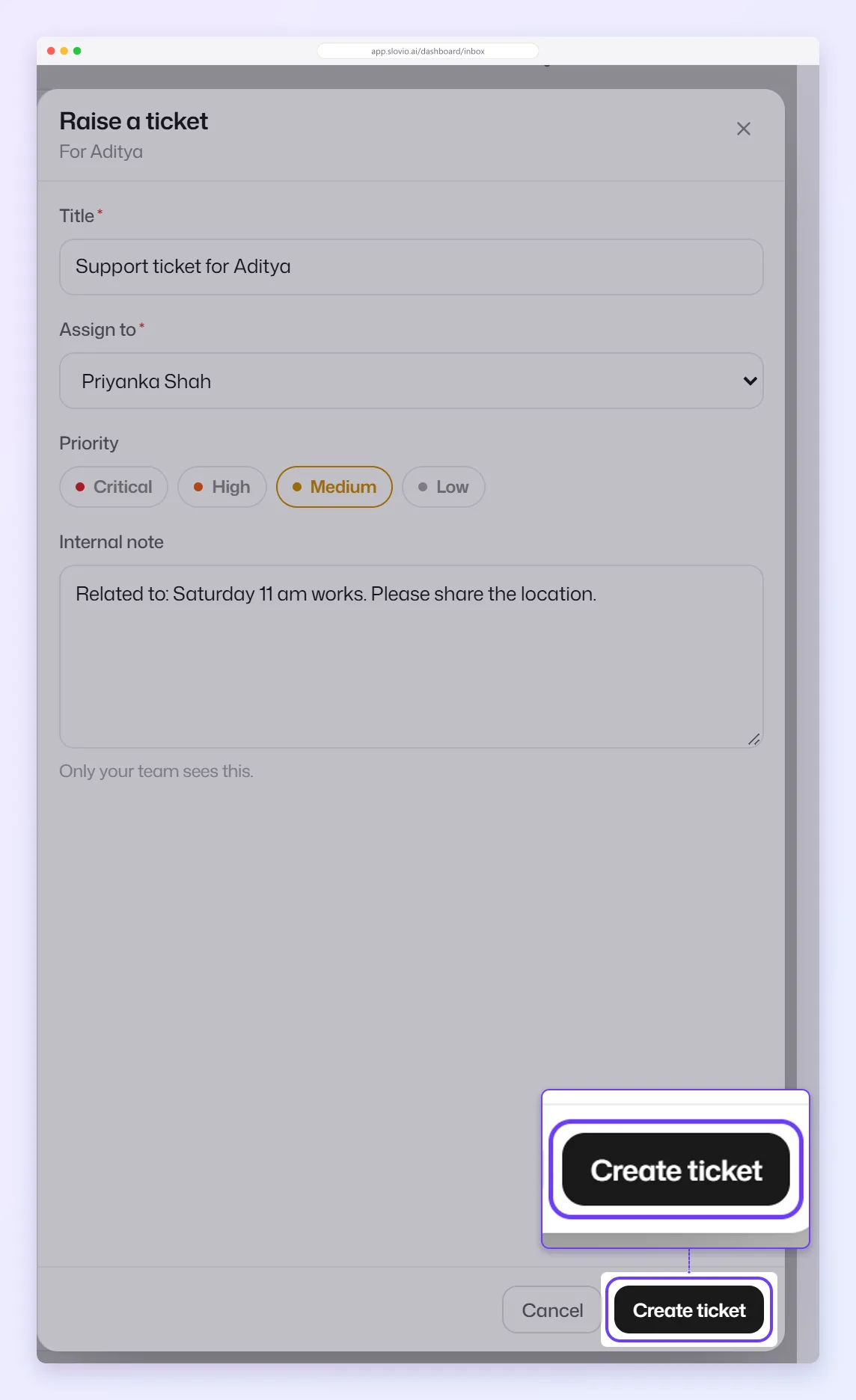
In Raise a ticket, fill in:
- Title (required), for example "Refund for damaged mixer"
- Assign to (required): the team member who owns it
- Priority: defaults to Medium
- Internal note: context for the owner. Only your team sees it.
Select Create ticket.
If the conversation already has an open ticket, the button reads Close Ticket instead.
Ticket priorities
Priority sets how old a ticket can get before it shows as late. These are guides, not enforced deadlines.
| Priority | Shows as late after |
|---|---|
| Critical | 4 hours |
| High | 12 hours |
| Medium | 48 hours |
| Low | 120 hours |
Ticket statuses
Open, In progress, Awaiting reply, Resolved and Closed.
Find and filter tickets
Go to More → CRM → Tickets. Search with Search tickets…, and filter by status, priority and assignee. Reset Filters clears them. Each contact's record also has a Tickets tab.
Turn on CSAT surveys
Go to More → Insights → CSAT. The page is titled CSAT Reports.
Pick the channel. Survey settings are per channel.
In Survey settings, tick Send a satisfaction survey when a conversation is resolved.
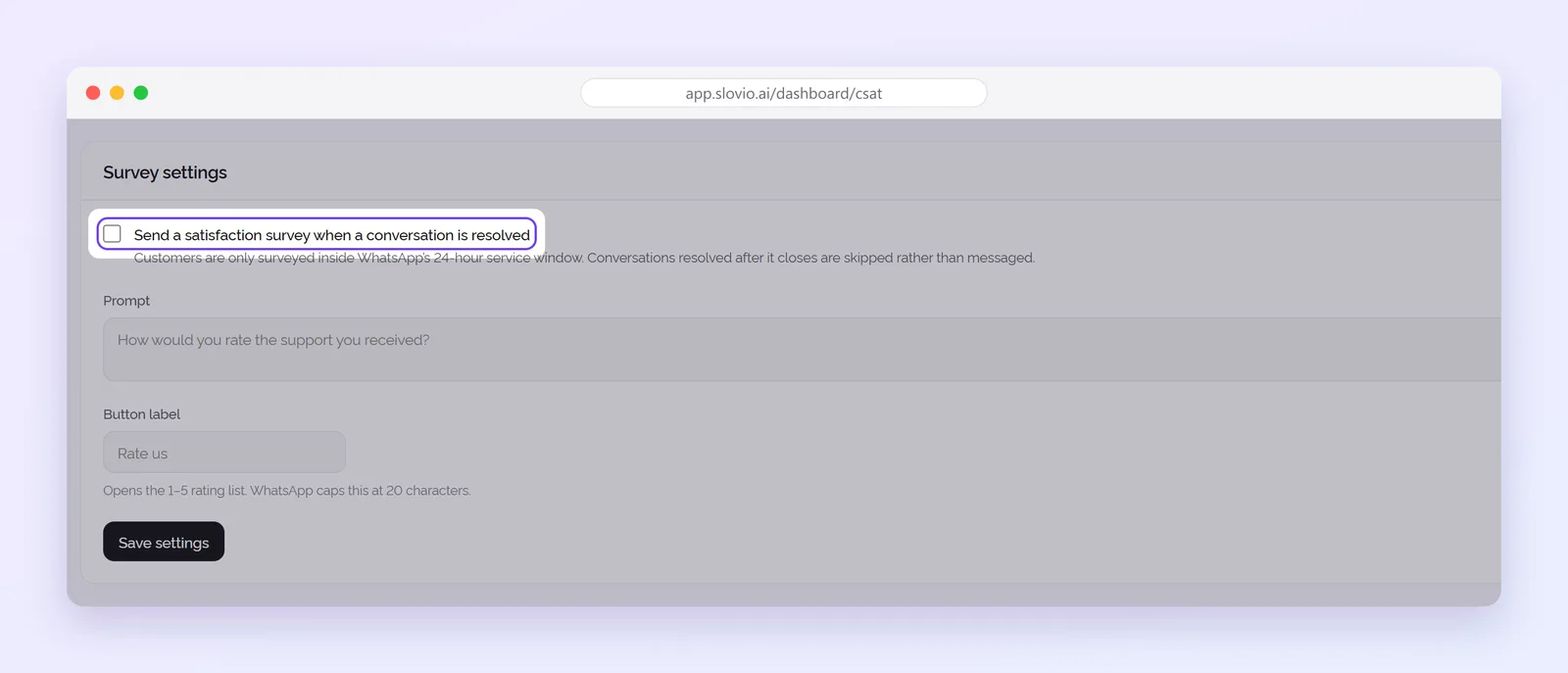
Edit the Prompt (default "How would you rate the support you received?", up to 1024 characters) and the Button label (default "Rate us", up to 20 characters).
Only managers see the survey settings. Customers rate Poor, Fair, Average, Good or Excellent.
Read the CSAT report
Choose Last 7, 30 or 90 days. The report shows:
- Total responses, Satisfaction score, Response rate
- Avg. first response and Avg. resolution time
- Conversations resolved
- a Rating distribution chart
- By agent results (managers only)
Worked example: a refund ticket
Rohit at Kaveri Home Appliances, Bengaluru, is chatting with a customer about a damaged mixer.
- In the contact panel he selects Tickets → Create Ticket.
- Title: "Refund for damaged mixer, order 8821". Assign to: Anjali (accounts). Priority: High. Internal note: "Photos received in chat. Refund ₹3,499 to UPI."
- He selects Create ticket and resolves the chat.
Anjali sees the ticket under More → CRM → Tickets. If it is still open after 12 hours, it shows as late. The customer gets the CSAT survey when Rohit resolves the chat.
Common questions
Why is there no create button on the Tickets page?
Tickets are created from a conversation so they stay linked to the chat. Use Raise from a conversation to jump to the Inbox, then Create Ticket in the contact panel.
Are the priority hours a guaranteed SLA?
No. They only decide when a ticket shows as late. For reply-time clocks on conversations, use SLA policies in Assignment, SLAs and macros.
Why did a customer not get the CSAT survey?
The conversation was resolved after WhatsApp's 24-hour window closed, or CSAT is not switched on for that channel.
Can I change the survey wording?
Yes. Edit the Prompt and Button label in Survey settings for each channel.
Stuck, or is something here out of date? Tell the team — we reply within a working day.