Connect your first channel
How to connect your first Slovio channel (WhatsApp, RCS, SMS, Instagram, Facebook, Telegram or Calling), what each needs, and how to finish a half-done setup.
3 min readUpdated
Nothing can be sent or received until at least one channel is connected. To connect one, select Connect a channel on Home, or go to More → Workspace → Channels, then select Connect on the channel you want and follow its steps.
Open the Channels page
Either:
- On Home, select Connect a channel under Connect a channel to get started, or
- Go to More → Workspace → Channels.
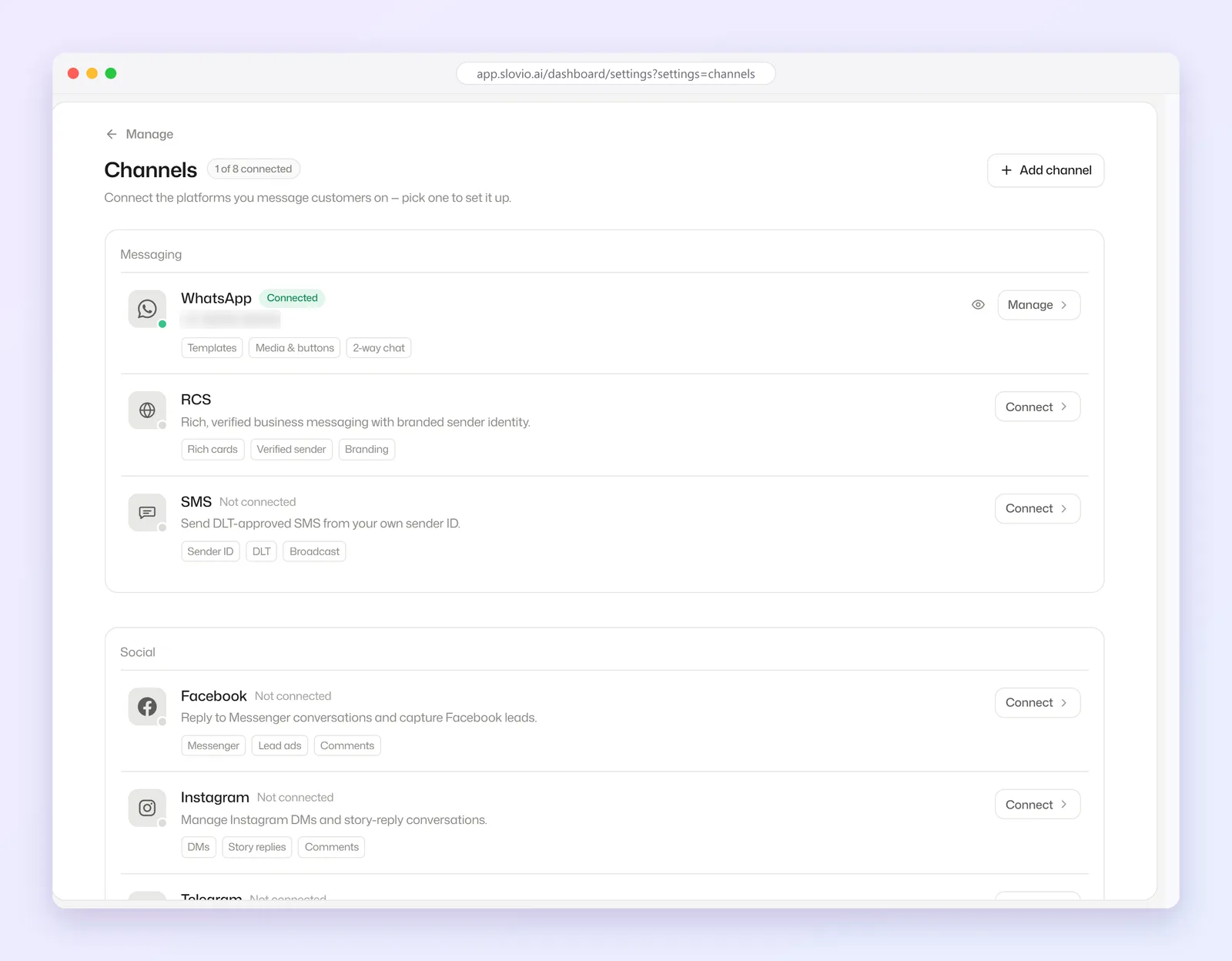
The header shows how many channels are connected, for example "1 of 8 connected", and an Add channel button. Channels are grouped:
| Group | Channels |
|---|---|
| Messaging | WhatsApp, RCS, SMS |
| Social | Facebook, Instagram, Telegram |
| Your website | Web chat (almost ready, cannot be connected yet) |
| Voice | Calling |
| Coming soon | Email (a shared email inbox) |
Select Connect on a channel, or Manage on one you already have. Once added, it appears under Channels in the left sidebar.
What each channel needs
| Channel | You need | Guide |
|---|---|---|
| A Facebook login with access to your business on Meta, and a phone number for WhatsApp | Connect WhatsApp | |
| RCS | Your bot logo, banner image, contact details and opt-in policy, for operator verification | Connect RCS |
| SMS | Your DLT Principal Entity ID and registered sender IDs (3 to 11 characters) | Connect SMS |
| Facebook Messenger | Admin access to your Facebook Page | Connect Instagram and Facebook |
| An Instagram professional account linked to a Facebook Page you admin | Connect Instagram and Facebook | |
| Telegram | A bot token from BotFather | Connect Telegram |
| Calling | Nothing up front; Slovio sets it up. You can buy a number afterwards. | Set up AI Calling |
Finish a half-done setup
A channel you saved but did not finish shows under Finish setup to go live on the Channels page. Select Finish setup (for WhatsApp, Connect your number) to complete it.
Check your plan's channel limits
Each plan includes a number of channels of each type. When you add one, you see "used / limit", Limit reached, or Not available in your plan. A channel your plan does not include shows a lock in the sidebar. See Plans and subscription.
Before you send
- Add money to your wallet. Every message and call minute is paid from it. See Wallet and recharge.
- Business verification. If your account asks for it, finish it before the deadline or outbound sending pauses. See Business verification (KYC).
Worked example: WhatsApp for a clinic
Dr. Sen's Dental Care, Kolkata, wants appointment reminders on WhatsApp.
- On Home, the clinic manager selects Connect a channel.
- Under Messaging, she selects Connect on WhatsApp and signs in with the Facebook account that manages the clinic's Meta business.
- She adds the clinic's number, +919830012345, and verifies it.
Result: the header shows "1 of 8 connected", WhatsApp appears in the sidebar, and Home no longer asks her to connect a channel. Next she creates a reminder template under WhatsApp → Templates.
Common questions
Which channel should I connect first?
WhatsApp, for most Indian businesses. Customers already use it, and you can send templates and reply in the shared Inbox.
Can I connect web chat for my website?
Not yet. Web chat is listed under Your website but cannot be connected. Email is coming soon.
Why does a channel show in my sidebar before it works?
A channel appears once you add it, even if setup is not finished. Complete it under Finish setup to go live.
Do I need a phone number before setting up Calling?
No. Calling needs no credentials up front. You can buy a number afterwards.
Stuck, or is something here out of date? Tell the team — we reply within a working day.