Assignment, SLAs and macros
Set up automatic conversation assignment with round robin, add live SLA clocks for first reply and resolution, and save one-click inbox macros in Slovio.
3 min readUpdated
Automatic assignment, SLA clocks and macros are set on one screen: More → Workspace → Agents → Settings. Switch on Assign agent when message comes to share new conversations across your team, create an SLA policy to time replies, and save macros for repeated steps.
Set up automatic assignment
The Conversation Distribution card holds these settings, in this order. Select Save Settings when you are done.
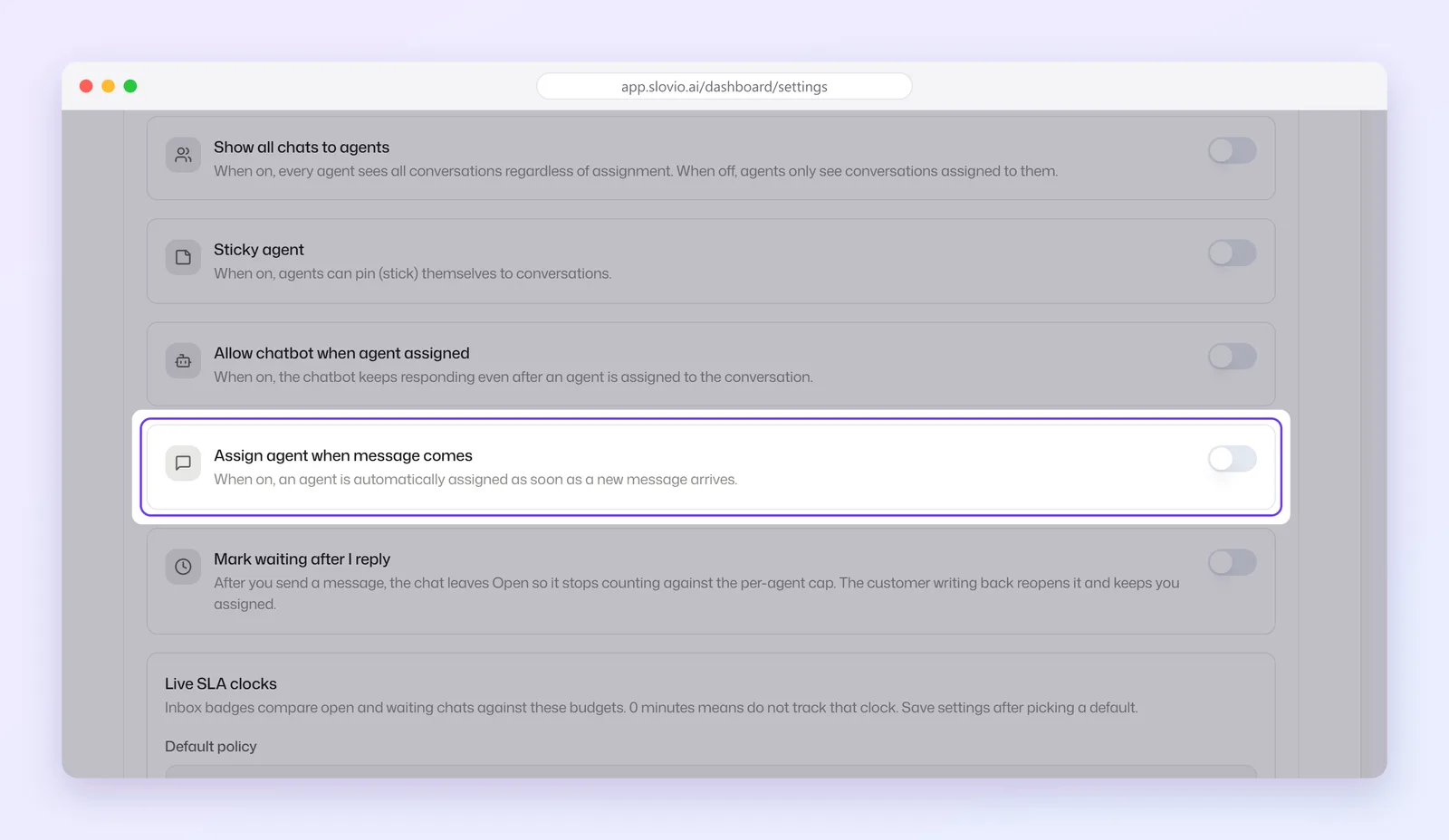
| Setting | What it does |
|---|---|
| Show all chats to agents | On: every agent sees all conversations. Off: agents see only conversations assigned to them. |
| Sticky agent | Agents can pin (stick) themselves to conversations. |
| Allow chatbot when agent assigned | On: the chatbot keeps replying after a person is assigned. |
| Assign agent when message comes | On: an agent is assigned as soon as a new message arrives. |
| Mark waiting after I reply | After you reply, the chat leaves Open so it does not count toward your cap. When the customer writes back, it reopens and stays with you. |
Round robin settings
These three fields appear only when Assign agent when message comes is on.
| Field | Range | What it does |
|---|---|---|
| Round robin circle count | 1 to 5 | How many rounds the conversation is offered around your agents before round robin stops. |
| Wait time before agent transfer | 1 to 5 | How long the assigned agent has to reply before the conversation moves to the next agent. |
| Max open conversations per agent | 0 to 999 | Agents at this many open chats are skipped. 0 means no limit. If everyone is at the limit, the conversation stays unassigned. |
Add SLA clocks
Live SLA clocks sits in the same card.
- Under New policy name, type a name, for example "Standard inbox".
- Set First reply (min), Next reply (min) and Resolve (min). The defaults are 15, 15 and 0. Each can be 0 to 10080 minutes (7 days). 0 means that clock is not tracked.
- Select Create policy.
- Choose it under Default policy, then select Save Settings.
In the conversation list, a chat shows an amber SLA soon badge at 80% of its time, and a red SLA badge once the time is up. Choose None — no badges to turn the clocks off.
Save an inbox macro
The Inbox macros card is below Conversation Distribution. A macro does up to two things in one click.
- Enter a Name, for example "Waiting — sent recap".
- Choose Visibility: Just me or Whole team. Team macros need the account owner.
- Optional: type Send this text (up to 4096 characters). Text is sent on WhatsApp conversations only.
- Choose Then set status: Leave status, Waiting on customer or Resolved.
- Select Save macro.
The assigned agent runs a macro from Macros in the conversation header's menu.
Route conversations by team with tags
- Go to More → Workspace → Agents → Tags.
- Select Add Category, for example "Language", then Add Tag, for example "Hindi".
- Add the tag to your agents when you edit them.
- In a chatbot, add the Assign Agent block and pick the Tag category and Agent tag.
Worked example: a four-person support team
Mehta Tours, Jaipur, has four agents and wants fair sharing and quick first replies.
- Assign agent when message comes: on
- Round robin circle count: 2
- Wait time before agent transfer: 3
- Max open conversations per agent: 15
- Mark waiting after I reply: on
- SLA policy "Standard inbox": First reply (min) 10, Next reply (min) 30, Resolve (min) 240
The result: each new chat goes to the next available agent with fewer than 15 open chats. If that agent does not reply in time, the chat moves on, for up to two rounds. A chat with no first reply shows SLA soon after 8 minutes and SLA after 10.
Common questions
Why can't I see the round robin fields?
They appear only when Assign agent when message comes is switched on.
What does 0 mean for Max open conversations per agent?
No limit. Agents are assigned conversations however many they already have open.
Can a macro send a message on Instagram or SMS?
No. Send this text works on WhatsApp conversations only. The status change works on any channel.
Do SLA clocks send alerts?
No. They show SLA soon and SLA badges in the conversation list so your team can see what needs a reply first.
Stuck, or is something here out of date? Tell the team — we reply within a working day.