Connect RCS
Connect RCS in Slovio by adding the channel and filling in one bot registration form, with the image sizes, contact details and opt-in answers operators need.
3 min readUpdated
To connect RCS, add an RCS channel under More → Workspace → Channels, then fill in the RCS bot registration form. The operator verifies your brand, and the Slovio team sets up the bot credentials for you. RCS messages then arrive in the phone's default messaging app with your verified name, logo and colour, plus rich cards and buttons.
Add the channel
Go to More → Workspace → Channels and select Connect on RCS.
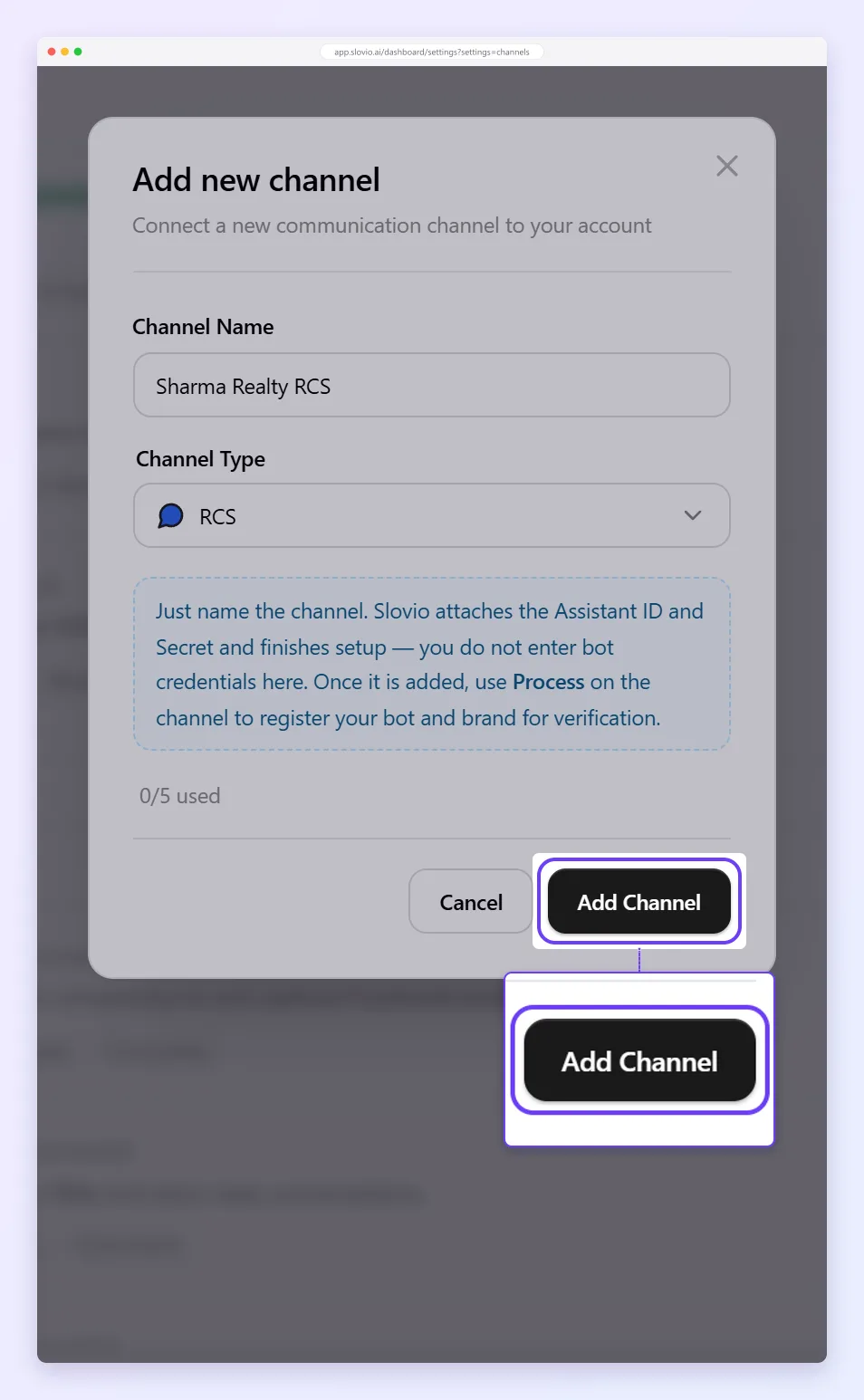
Name the channel and select Add Channel. You never enter bot credentials (Assistant ID and Secret): Slovio sets them up after you create the channel. If you open the old RCS credentials page, it only says this and links back to Channels.
On the RCS row, select Process to open RCS bot registration.
Fill in the registration
Bot
- Bot type: Domestic (India) or International.
- Bot message type: OTP, Transactional or Promotional.
- Bot name (up to 80 characters): the sender name people see on every message. Your channel is renamed to match.
- Brand name (up to 80 characters).
Branding
| Asset | Requirement |
|---|---|
| Bot logo | Exactly 224×224 px, JPG or PNG, up to 90 KB. Leave a white border; it is shown in a circle. |
| Banner image | Exactly 1440×448 px, JPG or PNG, up to 360 KB. |
| Short description | Up to 100 characters. |
| Agent colour (optional) | A hex colour like #3B35FF that is readable on white (4.5:1 contrast). |
Contact
- Up to 3 phone numbers, emails and websites (websites must start with https://).
- Your Terms & conditions and Privacy policy URLs (https, both required).
- A brand contact person: name, designation, mobile and an official email on your own domain. Gmail, Yahoo and Hotmail addresses are not accepted by operators.
Compliance (up to 2000 characters each)
- How do you obtain opt-in to message users?
- What actions trigger messages to users?
- What does the bot reply when a user opts out? (optional)
Select Submit.
Statuses
| On the channel | Meaning |
|---|---|
| Process | Not registered yet. |
| In process | Submitted; the Slovio team and the operator are reviewing it. You can still edit it. |
| Needs changes | Fix the points listed and Resubmit. |
| Connected | Verified. Your bot can send. These details are now fixed; contact support if your brand changes. |
Replies
RCS has no 24-hour window: you can reply to a customer at any time.
Next: RCS templates.
Common questions
Do I need to enter RCS credentials?
No. The Assistant ID and Secret are set up by Slovio after you create the channel. The RCS credentials page only confirms this; there is nothing to fill in.
How long does RCS verification take?
It depends on the operator's review. The channel shows In process while the Slovio team and the operator check it, and Connected once your bot can send.
Why was my registration sent back?
The status shows Needs changes with the points to fix, often an image of the wrong size or a personal email address. Fix them and select Resubmit.
Can I use a Gmail address as the brand contact?
No. Operators need an official email on your own domain; Gmail, Yahoo and Hotmail addresses are not accepted.
Can I change my bot name after it is connected?
The details are fixed once the bot is verified. Contact support if your brand changes.
Stuck, or is something here out of date? Tell the team — we reply within a working day.