Meetings and booking links
Create meeting types in Slovio, share a public booking link, set buffers and booking limits, add Zoom or Google Meet, and manage every booking.
8 min readUpdated
A meeting type is a bookable slot, such as a 30-minute demo, with its own public booking link. Create one under More → CRM → Meetings, share the link, and every booking shows up in the Bookings tab with its Google Meet or Zoom join link.
What's on the Meetings page
More → CRM → Meetings has two tabs:
| Tab | What it shows |
|---|---|
| Event types | One card per meeting type: title, description, duration and location (Google Meet or Zoom). |
| Bookings | Everyone who booked, with status, meeting and time. |
Use the search box to filter meeting types by title, or bookings by guest name or meeting title.
Create a meeting type
Go to More → CRM → Meetings.
Click New meeting type.
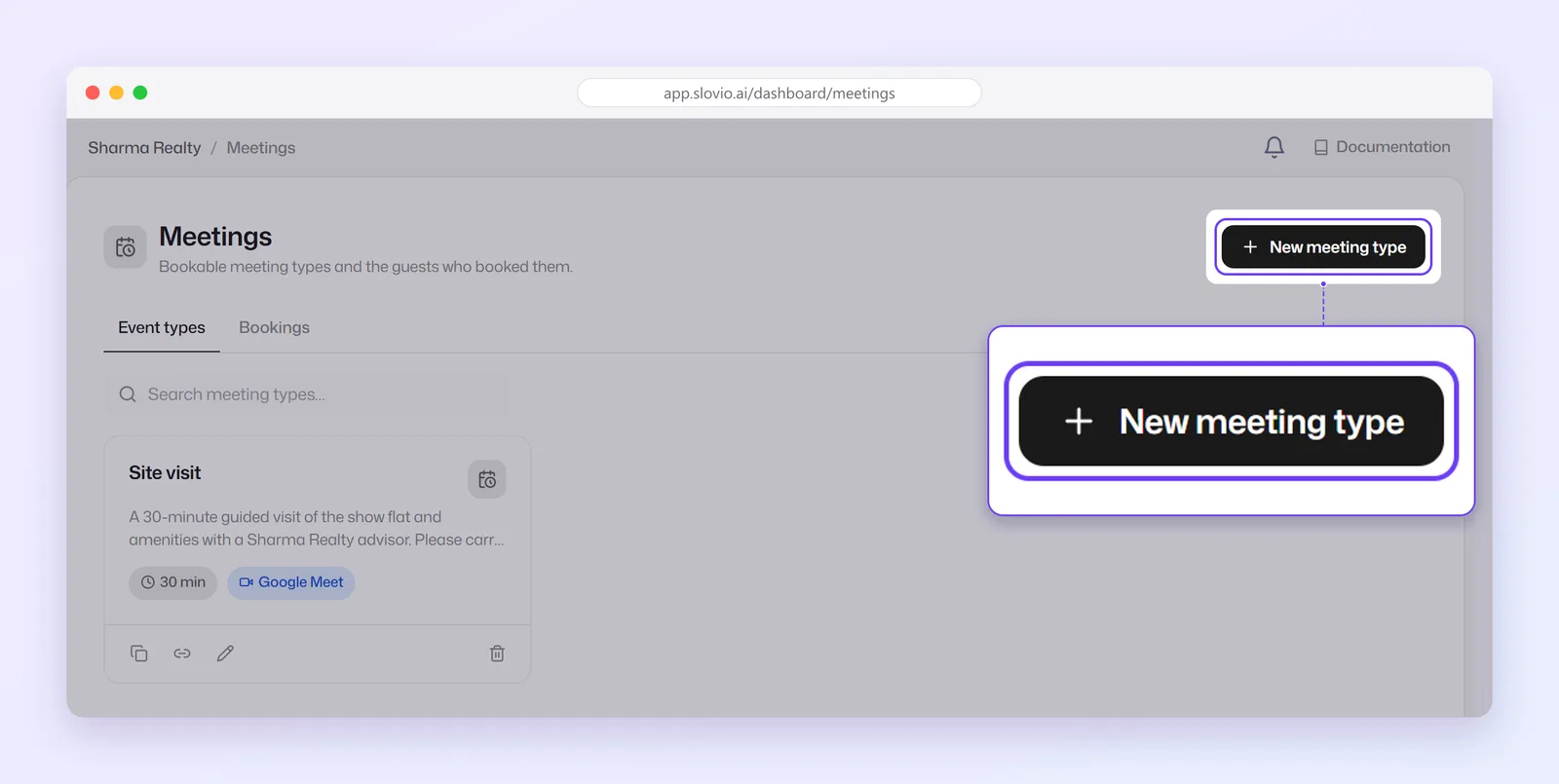
Fill in the Details card, then the Availability, Limits & buffers and Booking form cards (explained below).
Click Create.
Every meeting type needs a title, a duration of at least 5 minutes, a valid timezone and a connected conferencing account. If one is missing, Slovio shows a message such as Give the meeting type a title or Connect and select a Google account, and nothing is saved.
Details
| Field | What to enter |
|---|---|
| Title | The name guests see, for example "30-minute intro call". |
| Description | What the meeting is about. Shown on the booking page. |
| Duration (minutes) | Length of each meeting. Default 30, minimum 5. |
| Location | Google Meet or Zoom. |
| Google Account or Zoom account | The account that hosts the meetings. Click Connect Google account or Connect Zoom account, sign in in the popup, then pick the account from the list. |
| Timezone | The timezone your availability hours are in. Defaults to your browser's timezone. |
If the popup doesn't open, allow popups for the Slovio site in your browser and try again.
Availability
Turn each weekday on or off and set a start and end time, in 30-minute steps. New meeting types start with Monday to Friday, 10:00 to 18:00. Saturday and Sunday start as Unavailable.
The booking page offers slots back to back from the start time, one per meeting length. A 30-minute meeting from 10:00 to 18:00 gives 16 slots: 10:00, 10:30 and so on up to 17:30.
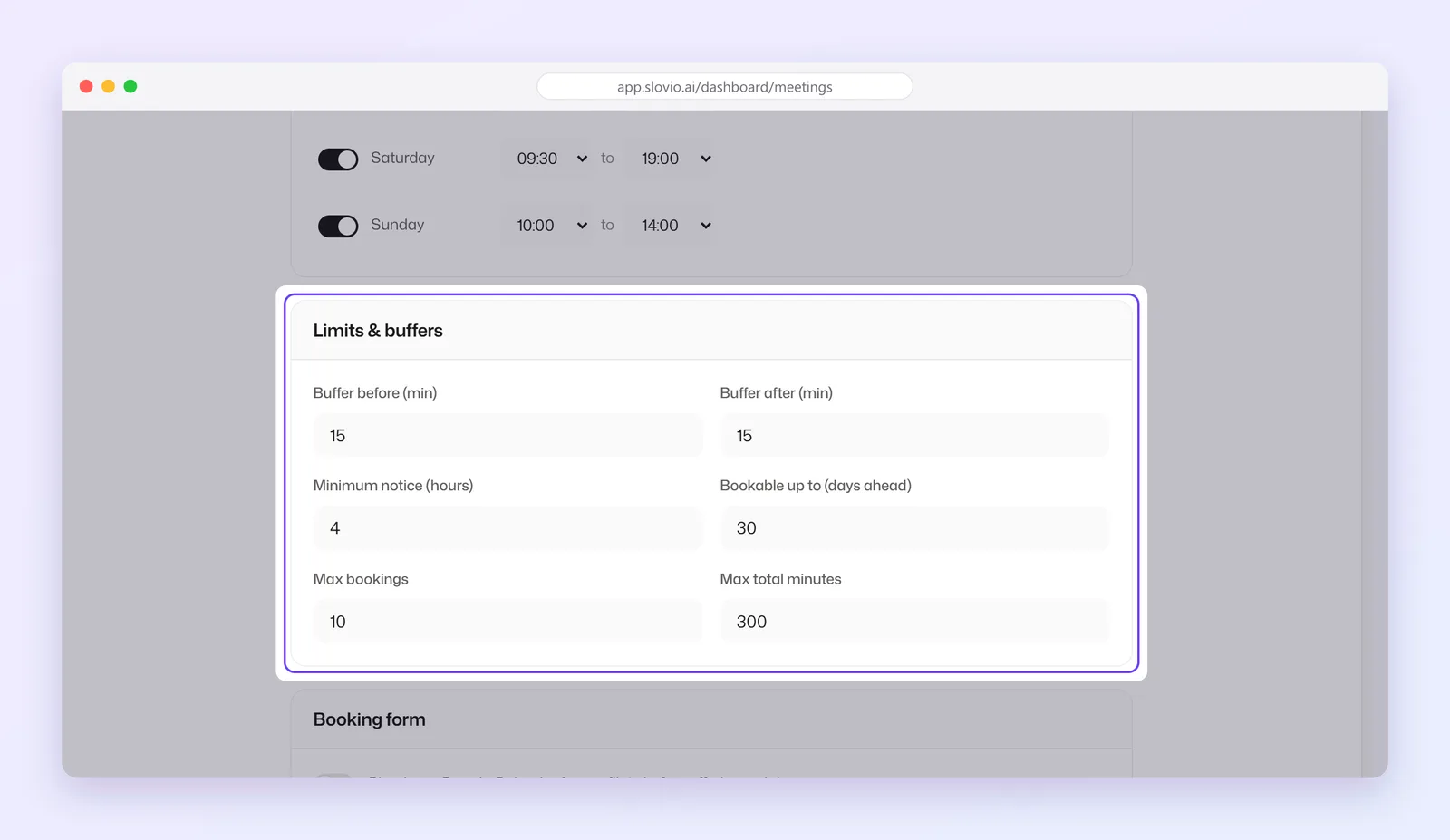
Limits and buffers
| Field | Default | What it does |
|---|---|---|
| Buffer before (min) | 0 | Free time kept before each booking. |
| Buffer after (min) | 0 | Free time kept after each booking. |
| Minimum notice (hours) | 0 | How far ahead a guest must book. |
| Bookable up to (days ahead) | 30 | How far into the future guests can book. |
| Max bookings per day | 10 | How many bookings this meeting type accepts on one day. Set any number, such as 10 or 20. |
| Max booked minutes per day | 300 | How many booked minutes this meeting type accepts on one day. |
Slovio checks these rules when the guest confirms. A booking that breaks one is refused with a message that explains why, for example "This time slot conflicts with a buffer zone around an existing booking." or "Booking limit reached."
Booking form
- Check my Google Calendar for conflicts before offering a slot: the booking page hides times when the connected Google account's primary calendar is busy. This check only runs for Google Meet meeting types. Zoom meeting types only avoid slots already booked in Slovio.
- Personal meeting: for meetings booked directly against a contact you already have, for example by the Book a Meeting step in a workflow. A personal meeting type has no public form, so don't share its booking link.
- Custom questions: click Add question, type the question and an optional placeholder, and pick a type: Text, Number, Email or Phone.
First name, last name, email and phone number are always asked. Your custom questions appear after them.
Share your booking link
On the Event types tab, each card has three buttons:
| Button | What it does |
|---|---|
| Copy booking link | Copies the public link. It looks like https://<your Slovio address>/book/<meeting type ID>. |
| Preview booking page | Opens the page in a new tab, as a guest sees it. |
| Edit | Opens the editor. Click Save changes when done. |
Guests don't need a Slovio login. Put the link in a WhatsApp message, an email signature or a chatbot reply.
Deleting a meeting type removes its booking link at once. Its existing bookings stay in the Bookings tab. This can't be undone.
What the guest sees
- The page shows your meeting's title, description, duration and location.
- The guest picks a date, then a time, and clicks Continue.
- Under Your details, they enter first name, last name, email, phone number and your custom questions.
- Optional: they click Add guest to invite others, up to 5.
- They click Confirm booking.
- A You're booked! screen shows the date and time, a Join meeting button, and Add to your calendar links for Google, Office 365, Outlook and Apple / ICS.
Slovio finds or creates a contact in Contacts from the guest's phone number and email. A 10-digit number without a country code is read as an Indian number.
If a guest opens a link whose meeting type was deleted, they see Meeting not found.
Manage bookings
Open the Bookings tab. Switch between List and Calendar at the top right.
In List view, filter by Upcoming, Past or Cancelled. Each row shows the guest, a status and the meeting and time. New bookings arrive as Pending.
| Action | What happens |
|---|---|
| Join link | Opens the Google Meet or Zoom meeting. |
| Confirm | Changes a Pending booking to Confirmed. |
| Reschedule | Pick a New date & time and click Reschedule. Slovio blocks past times and slots that are already booked. |
| Cancel | After you click Cancel booking, the status becomes Cancelled and the linked calendar event is removed. This can't be undone. |
Calendar view shows one week of upcoming and past bookings. Cancelled bookings are hidden there. Use the arrows or Today to move between weeks, and click a booking to reschedule it.
Send reminders and follow-ups automatically
To message guests when they book, build a workflow that starts with the Meeting Booking trigger. Pick the Meeting type and when it fires: A booking is created, A booking is confirmed, A booking is cancelled, or before or after the meeting starts or ends. For the before and after options, set Offset (minutes). See Workflows.
Worked example: a virtual site visit for a real-estate firm
Sharma Realty in Pune wants buyers to book a 30-minute video walkthrough of a sample flat. Priya, their sales head, sets it up.
Details
| Field | Value |
|---|---|
| Title | Virtual site visit |
| Description | A 30-minute live video tour of our 2 BHK sample flat at Sharma Greens, Baner. Bring your questions on price and possession. |
| Duration (minutes) | 30 |
| Location | Google Meet, with sales@sharmarealty.in connected |
| Timezone | Asia/Kolkata |
Availability: Monday to Saturday on, 10:00 to 18:00. Sunday off.
Limits & buffers
| Field | Value | Why |
|---|---|---|
| Buffer after (min) | 15 | Time to log notes. It also keeps the next slot free. |
| Minimum notice (hours) | 2 | Time to prepare the sample flat. |
| Bookable up to (days ahead) | 14 | Only two weeks of open slots. |
| Max bookings per day | 12 | Two sales executives, six visits each a day. |
| Max booked minutes per day | 360 | 12 visits × 30 minutes. |
Booking form: Google Calendar conflict check on. Two custom questions:
- "Which project are you interested in?" (Text)
- "Budget in ₹ lakh" (Number)
Priya clicks Create, then Copy booking link, and adds the link to her WhatsApp broadcast.
What the buyer sees: Rahul Mehta opens the link on his phone and picks Saturday, 11:00. He enters Rahul, Mehta, rahul.mehta@example.com and 9876543210, then answers "Sharma Greens" and "85". He clicks Confirm booking and sees You're booked! with a Join meeting button and calendar links.
What Sharma Realty sees:
- Rahul appears in Contacts with the number +919876543210.
- In Bookings → Upcoming, there's a Pending row for Rahul Mehta with Virtual site visit and Saturday's date at 11:00 AM.
- Priya clicks Confirm, and the status becomes Confirmed.
- The 11:00 slot is now taken. Because of the 15-minute buffer, a booking at 11:30 is also refused. The next free slot is 12:00.
Common questions
Why did my booking link stop accepting bookings?
That day has probably reached its Max bookings per day or Max booked minutes per day. Other days still take bookings. To allow more on one day, edit the meeting type and raise both numbers.
Can I use Zoom instead of Google Meet?
Yes. Set Location to Zoom, click Connect Zoom account, and pick the account. Each booking then gets its own Zoom meeting and join link. The Google Calendar conflict check only works with Google Meet meeting types.
Do bookings need my approval?
New bookings arrive as Pending, but the join link is created straight away and the guest already sees You're booked!. Click Confirm in the Bookings tab to mark a booking Confirmed, or Cancel to cancel it. If a workflow uses the A booking is confirmed trigger, it runs when you confirm.
Does deleting a meeting type cancel its bookings?
No. The booking link stops working, but existing bookings stay in the Bookings tab. Cancel them one by one if you need to.
Can a guest bring colleagues?
Yes. On the booking form they can click Add guest and add up to 5 people, each with name, email and phone number. Each guest is also saved as a contact.
Stuck, or is something here out of date? Tell the team — we reply within a working day.