WhatsApp lead capture chatbot example
Build a WhatsApp lead capture chatbot in Slovio step by step. It asks name, budget and locality, saves them to the contact, then routes hot leads to sales.
6 min readUpdated
This example builds a complete WhatsApp lead capture chatbot for a Pune real-estate developer. The bot asks the buyer's name, budget and preferred locality, saves the answers to the contact, then hands high-budget buyers to the sales team and sends everyone else a brochure. Every block and field below is named exactly as it appears in the Chatbot builder.
What you'll build
Sahyadri Homes sells 2 and 3 BHK flats in Baner, Wakad and Hinjewadi. Buyers message the WhatsApp number from a property-portal ad. The bot:
- Starts when the message contains "flat", "2bhk", "3bhk" or "site visit".
- Asks three questions and saves each answer to a variable.
- Saves the answers to the contact.
- If the budget is ₹90 lakh or more, tells the buyer a sales executive will call and assigns the chat to the sales team.
- Otherwise, sends the 2 BHK brochure as a PDF.
The blocks, in order:
Chat Trigger → Send Message → Ask a Question (name) → Ask a Question (budget)
→ Ask a Question (locality) → Update Contact → Condition
   If   → Send Message (callback) → Assign Agent
Else → Send Message (brochure)Before you start
- Connect your WhatsApp number. See Connect WhatsApp.
- Create three custom contact properties to hold the answers, for example "Enquiry name", "Budget (lakh)" and "Preferred locality". See Segments and custom properties.
- Upload the brochure PDF to your media gallery, or have a public link to it.
Create the bot
Sidebar → Chatbot → Create chatbot.
Under What should this bot do?, pick Blank canvas.
Name it
Site visit leadsand select Create. The builder opens with a Chat Trigger block.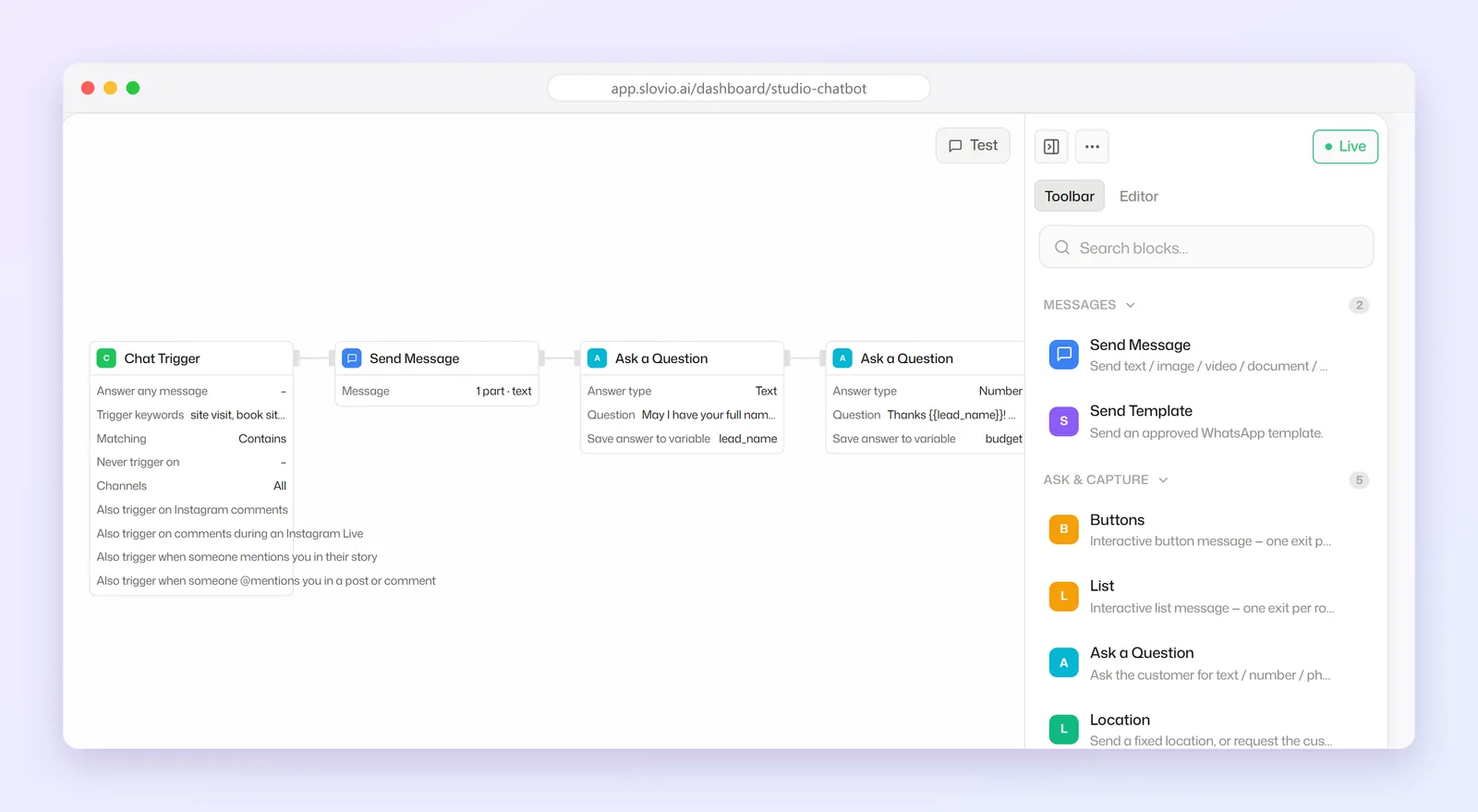
Block 1: Chat Trigger
Select the Chat Trigger block and set:
| Field | Value |
|---|---|
| Answer any message | Off |
| Trigger keywords | flat, 2bhk, 3bhk, site visit |
| Matching | Contains |
| Never trigger on | stop |
| Channels | Your WhatsApp number |
With Contains, "Hi, need a 2bhk in Wakad" starts the bot. Keywords are saved in lower case.
Block 2: Send Message (welcome)
Drag Send Message from the Messages section and connect the trigger to it. Under Message, add a Text part:
Namaste! Thanks for your interest in Sahyadri Homes. Three quick questions and we'll share the right options for you.Blocks 3 to 5: Ask a Question
Add three Ask a Question blocks from Ask & Capture, one after another.
| Block | Answer type | Question | Save answer to variable |
|---|---|---|---|
| Name | Text | May I know your name? | customer_name |
| Budget | Number | What is your budget in lakh? Reply with a number, for example 85. | budget_lakh |
| Locality | Text | Which area do you prefer: Baner, Wakad or Hinjewadi? | locality |
The answer is saved exactly as the buyer types it. So on the budget question, turn on Answer validation (under Advanced settings) and set:
| Field | Value |
|---|---|
| Pattern (regular expression) | ^\d+$ |
| If the answer fails | Ask again |
| Message when the answer is rejected | Please reply with numbers only, for example 85. |
Now "1.2 crore" is refused and the buyer is asked again, so the Condition later always gets a number.
Block 6: Update Contact
Add Update Contact from the Data section. Under Attribute updates, select Add row three times:
| Attribute | Variable name |
|---|---|
| Enquiry name | customer_name |
| Budget (lakh) | budget_lakh |
| Preferred locality | locality |
Under Advanced settings, pick a tag in Tags, for example "Site visit lead", so your team can filter these contacts later.
Block 7: Condition
Add Condition from the Logic section. Add one rule:
| Variable | Operator | Value |
|---|---|---|
budget_lakh |
is greater than or equal to | 90 |
The block has two exits: If (every rule matches) and Else.
If exit: callback and Assign Agent
Connect If to a Send Message with this text:
Thank you {{customer_name}}! We have 3 BHK homes in {{locality}} within your ₹{{budget_lakh}} lakh budget. A sales executive will call you shortly.Connect it to Assign Agent from the Handover section. Set Tag category and Agent tag to the sales team's agent tag. Team members who carry that tag get the chat in the Inbox.
Else exit: send the brochure
Connect Else to a Send Message with two parts:
A Text part:
Thanks {{customer_name}}! Here is our 2 BHK brochure for {{locality}}. Reply "site visit" any time to book a visit.A Document part. Paste the PDF link, or select Browse to pick it from your media gallery. Set File name to
Sahyadri-Homes-2BHK-Brochure.pdf.
Each part is sent as its own message, in order.
Test it
- Select Test on the canvas. The panel is marked Simulated — nothing is sent.
- The test runs the saved bot. If you have unsaved changes, select Save & test.
- Chat as a buyer would:
| You type | Bot replies |
|---|---|
| Hi, looking for a 2bhk | Namaste! Thanks for your interest in Sahyadri Homes... then "May I know your name?" |
| Rohan Deshpande | What is your budget in lakh? Reply with a number, for example 85. |
| 110 | Which area do you prefer: Baner, Wakad or Hinjewadi? |
| Baner | Thank you Rohan Deshpande! We have 3 BHK homes in Baner within your ₹110 lakh budget. A sales executive will call you shortly. |
Select Reset conversation and try a budget of 65 to check the Else path sends the brochure.
Put it live
Select Deploy. The button changes to Live. After later edits it shows Update until you deploy again. If any block has an error, the builder highlights it and the bot stays off until you fix it.
Once live, a real buyer who types "3bhk" gets the questions, their answers appear on their contact, and buyers at ₹90 lakh and above land with your sales team.
Common questions
Can I ask for the budget with buttons instead?
Yes. Use a Buttons block with up to 3 buttons, such as "Under ₹60 lakh", "₹60-90 lakh" and "₹90 lakh+". Each button has its own exit, so you don't need a Condition.
Why store the answers in custom properties and not the contact's name?
Update Contact writes answers to custom properties, tags, status, stage, source, priority, email and phone number. It doesn't change the contact's first or last name.
What if the buyer stops replying halfway?
The bot waits for the time set in Chatbot settings → Wait for a reply, then ends the session. The logs show it as Timed out.
Does testing update my contacts or assign chats?
No. The Test panel simulates every step, so nothing is sent, saved or assigned.
Can the same bot run on Instagram?
Yes. Add your Instagram account under Channels on the Chat Trigger. Note that Ask again on a rejected answer doesn't send the re-ask message on Instagram or Facebook.
Stuck, or is something here out of date? Tell the team — we reply within a working day.