Team members and roles
How to add team members (agents) to Slovio, give them roles and permissions, require two-factor sign-in, and suspend, reactivate or remove people.
3 min readUpdated
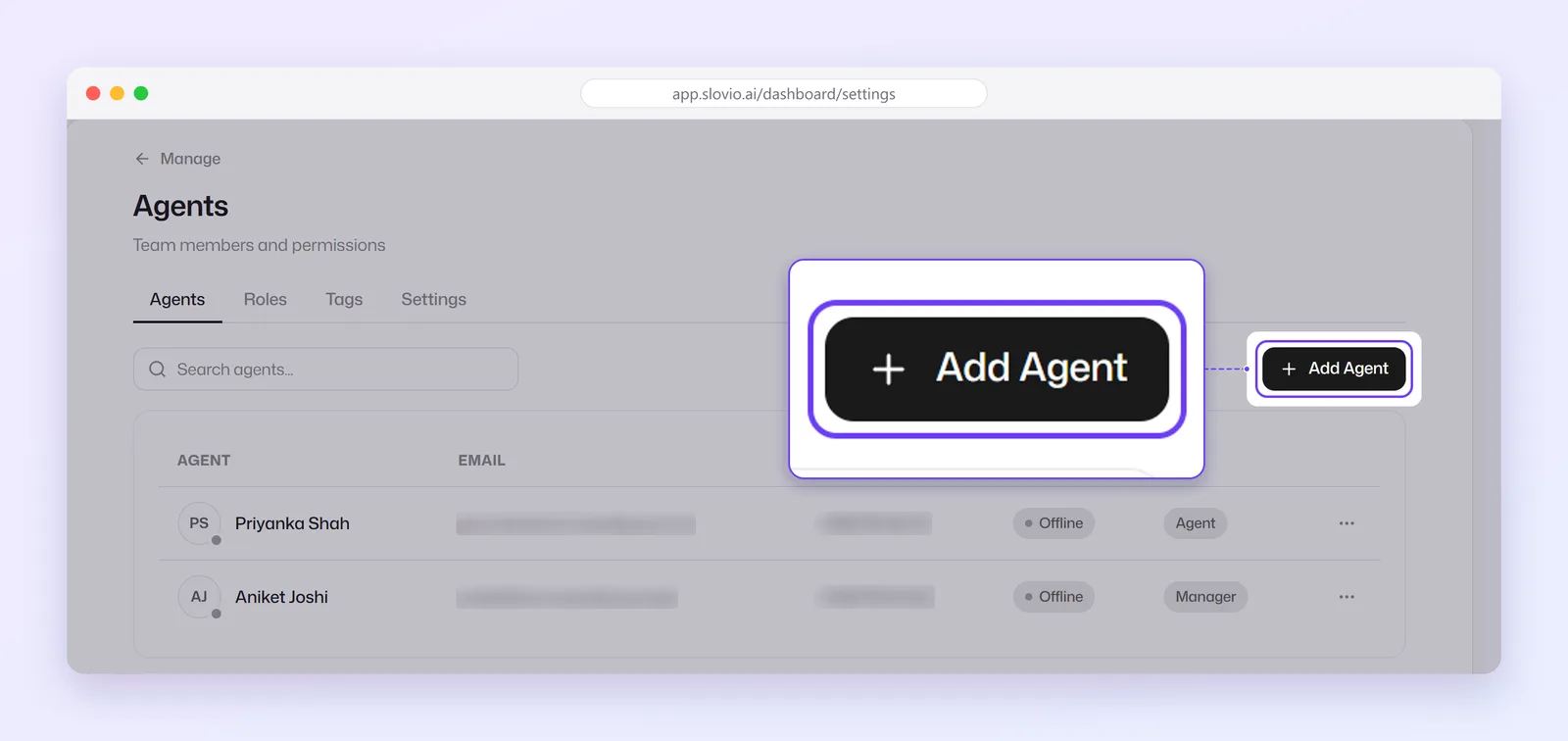
Team members are called agents in Slovio. To add one, go to More → Workspace → Agents, select Add Agent, fill in their details and role, and share the password with them. The page has four tabs: Agents, Roles, Tags and Settings.
Add a team member
Only the account owner can add team members.
Go to More → Workspace → Agents.
Select Add Agent.
Fill in First name, Last name, Email, Role, Tags (optional, for routing by team) and Phone number.
Set Two-factor authentication to Required or Disabled. It starts as Disabled. Use Required for anyone with a phone that can receive codes.
Set a Password of at least 8 characters.
Select Create agent.
Share the email and password with the person yourself, so they can sign in.
Understand roles and permissions
A role is a set of permissions. New accounts start with two:
| Role | Can do |
|---|---|
| Manager | View and manage contacts, broadcasts, templates, chatbots and workflows, and use the inbox. Cannot manage the team. |
| Agent | Use the inbox, and view and manage contacts. |
To create your own, open the Roles tab and select Create Role. Pick the channels the role can use, then the permissions:
| Area | Permissions |
|---|---|
| Contacts | View contacts; View and manage contacts |
| Inbox | Access and handle the team inbox |
| Templates | View; View and manage WhatsApp templates |
| Broadcasts | View; Create, schedule and manage broadcasts |
| Workflows | View; View and manage workflows |
| Chatbots | View; Build and manage chatbots |
| Team | View agents; Manage agents, roles and tags |
A permission only works if your plan includes the feature.
Manage a team member
In the Agents list, open a person's menu:
- View or Edit their details, role and two-factor setting
- Reset password
- Suspend (blocks sign-in, keeps their history) or Reactivate
- Delete
Set inbox assignment and tags
- The Settings tab controls how conversations are shared across your team: automatic assignment, round robin, per-agent caps, SLA clocks and macros. See Assignment, SLAs and macros.
- The Tags tab holds the tag categories and tags you give agents, so chatbots can route conversations to the right team.
Worked example: a sales and support team
Iyer Home Loans, Chennai, has an owner (Lakshmi), a team lead and three agents.
- Roles → Create Role "Team lead": WhatsApp channel; view and manage contacts, the inbox, broadcasts and templates. No team management.
- Tags → Add Category "Team", with tags "Sales" and "Support".
- Add Agent for Arjun (role Team lead, tag Sales, 2FA Required).
- Add Agent for Divya and Karthik (role Agent, tag Support, 2FA Required) and Meena (role Agent, tag Sales).
- Lakshmi sends each person their email and password on WhatsApp.
Result: Arjun can run broadcasts but cannot add people. Divya, Karthik and Meena see the inbox and contacts only. A chatbot's Assign Agent block can send loan enquiries to the Sales tag and complaints to Support.
Common questions
Does Slovio email the password to the new team member?
No. Share the email and password with them yourself. They can change the password after signing in.
Can a Manager add team members?
Not with the default Manager role. Adding team members is for the account owner.
What is the difference between Suspend and Delete?
Suspend stops the person signing in but keeps their conversation history, and you can Reactivate them. Delete removes them.
Should I require two-factor authentication?
Yes, for anyone with a phone that can receive codes. Choose Disabled only for people who cannot receive codes.
Stuck, or is something here out of date? Tell the team — we reply within a working day.